How to move a music library to an external SSD
Copying the files is the easy part. What breaks is every absolute path your player stored — and the assumption the copy arrived intact. A procedure that keeps the old copy until the new one is proven.
The files are the easy part. What breaks is everything that recorded where they used to be. A music library is files on disk plus an index that points at them, and an index stores absolute paths. Move the files and every path in it becomes an address that no longer resolves — which is why the same operation that takes twenty minutes in the Finder can produce a player reporting twenty thousand missing tracks.
So the procedure below is not “drag the folder across”. It is: copy, verify, repoint, test, back up, and only then delete the original. Every step before the last is reversible. The last one is not, and it happens days after the move rather than minutes after it.
Before you copy anything
Four things, none of which take long, and each of which prevents a specific mess.
Check the destination has room, with margin. Not “enough space” — enough space plus the room your collection will grow into, because doing this twice is worse than buying one size up. If you have not worked out what your library actually needs, the arithmetic on library size by format is the place to start.
Name the drive now, and never rename it. On macOS an external volume mounts
beneath /Volumes, so the volume’s name is a component of every absolute path
into it: /Volumes/Archive/Music/…. Rename the drive from Archive to Music Archive six months from now and you have broken the library exactly as
thoroughly as moving the files, without touching a single file. Pick a short,
plain, permanent name today.
Decide about the filesystem before there is data on it, not after. Formatting
destroys everything on the drive, so this is a decision with a deadline. The one
trap worth naming here: a case-sensitive volume and a case-insensitive one
disagree about whether The Beatles and The beatles are the same folder, and
copying between them can silently merge or collide directories. Copying into the
same kind of filesystem you came from is the boring, safe choice.
Leave the folder structure exactly as it is. Moving and reorganising at the same time means that when something is missing afterwards you cannot tell which of the two operations lost it. If the structure needs work, do it as a separate project, on a library that is already somewhere safe.
The move itself
One migration, with the irreversible step last
Step 1 · copy
Copy the tree, do not move it A move deletes as it goes, so a failure halfway through leaves half a library in each place and no way to tell which files made it. A copy leaves a complete, working library behind for the whole operation. Preserve the folder structure exactly — same tree, new root.Then, before anything else
Step 2 · verify
Prove the copy arrived intact File count, then total bytes, then a hash manifest. The first two are quick and can both pass on a damaged copy — see the measurement below. This is the step that makes step 7 safe, and it is the step every rushed migration skips.Step 3 · repoint
Point the player at the new location Add the new root, then remove the old one. Doing it in that order means the library is never empty; doing it in the other order means some players discard the index before they have anything to replace it with.Step 4 · rescan and check the count
Track, album and artist totals should match Not approximately. A shortfall of forty tracks is forty tracks that did not copy, did not scan, or were filed somewhere the new root does not reach.Step 5 · test the failure case on purpose
Eject the drive and open the player Find out now, with the original still on your internal disk, whether your player marks the library unavailable or quietly deletes twenty thousand rows. This is the single most useful five minutes in the whole procedure.Step 6 · back up the new location
The collection now lives on one external drive Which is a worse position than it was in this morning, when there were two copies. It stays worse until the new location is part of a backup routine.Days later, not minutes later
Step 7 · retire the old copy
Delete the original, once, on purpose After you have played from the new drive, browsed it, searched it, and confirmed the artwork is there. The old copy costs disk space; deleting it early costs the only safety net in the procedure.Verifying the copy: what each check can and cannot catch
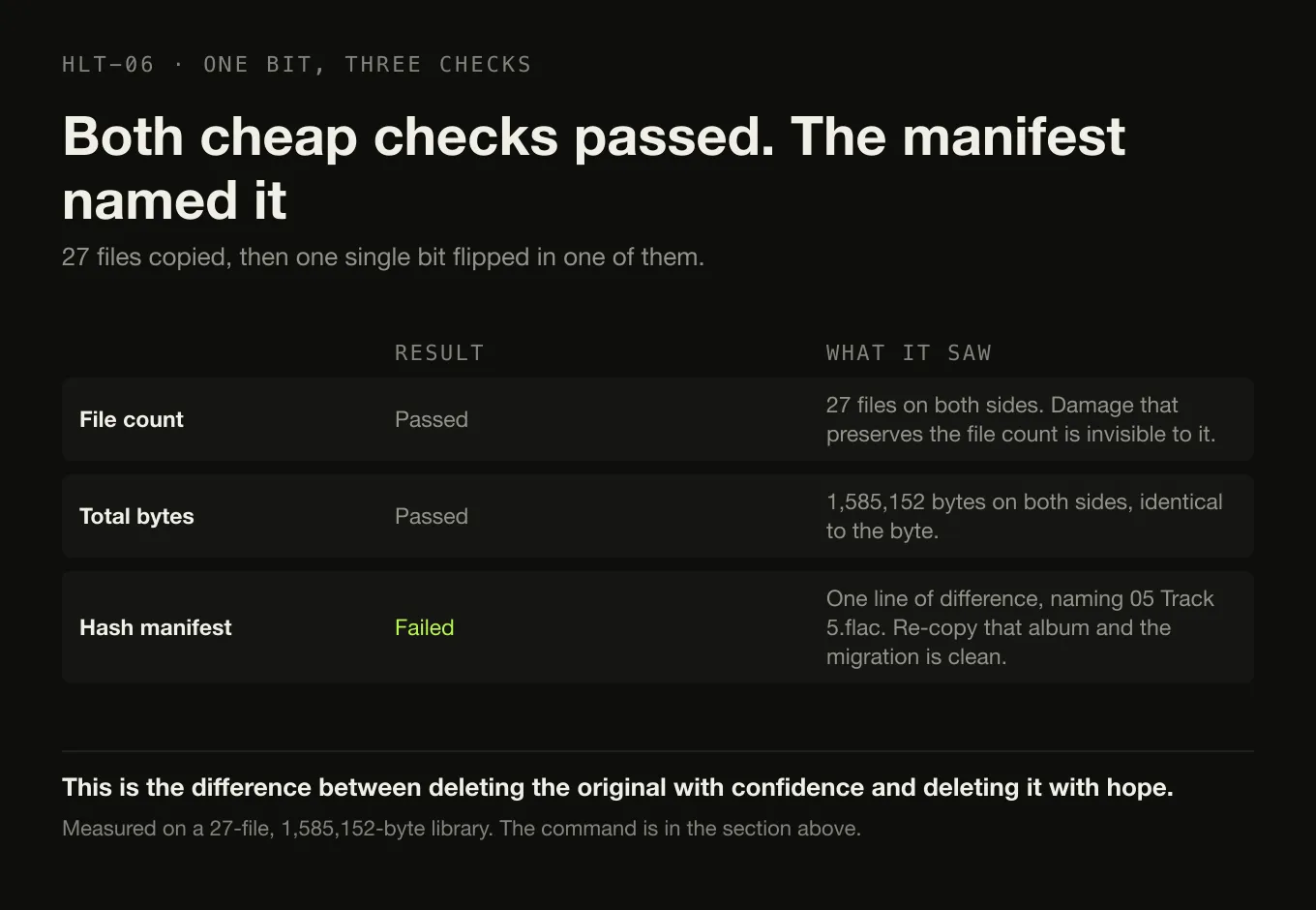
Here is why step 2 is not optional, measured rather than asserted. A miniature
library — 27 files, 1,585,152 bytes, three albums — was copied with cp -R, and
then one single bit was flipped in one file in the copy: the kind of damage a
failing cable, a dying enclosure or an interrupted write produces, which announces
itself with nothing at all.
old: 27 files, 1585152 bytes
new: 27 files, 1585152 bytes
Both cheap checks pass. The file count is identical. The byte total is identical to the byte. Now the manifest:
14c14
< 89474714618440cd2c76f55583fd90296f1b429ea4642d8be48e3bcfa7cdef51  ./Artist 2/Album 2/05 Track 5.flac
---
> ff06435ea3a0f402ae78885c693c274a44f12df7dc803304d11ea556ad53f73a  ./Artist 2/Album 2/05 Track 5.flac
One line of difference, and it names the file. Re-copy that album and the migration is clean.
| Check | Catches | Misses | Effort |
|---|---|---|---|
| File count | Whole files that never copied; a folder that was skipped | Anything that copied at the right size and the wrong content | Seconds |
| Total bytes | Truncated files; a partial copy | Any corruption that preserves length — including the case above | Seconds |
| Hash manifest | Every byte-level difference, and names the file | Nothing, at this scale | Minutes, unattended |
| Playing a few albums | Files that are broken in an audible way | The 99% of the library you did not play | Minutes |
You do not need to know what a hash is to run the last one. On macOS or Linux it is one command on each side and one comparison:
cd /path/to/old-library && find . -type f -print0 | sort -z | xargs -0 shasum -a 256 > /tmp/old.sha256
cd /path/to/new-library && find . -type f -print0 | sort -z | xargs -0 shasum -a 256 > /tmp/new.sha256
diff /tmp/old.sha256 /tmp/new.sha256
No output means every file on both sides is byte-for-byte identical. Any output is a list of exactly which files to copy again. On a large library it will run for a while; it runs unattended, and it is the difference between deleting the original with confidence and deleting it with hope.
What a stored path is made of, and which operations break it
Every “missing tracks” message in the table further down is one of these four components failing to resolve. Knowing which one turns a panic into a two-minute fix.
One indexed track: /Volumes/Archive/Music/Artist/Album/03 Track.flac
Breaks when The drive is not connected, or is connected and has not mounted.
Looks like Every track missing at once, including tracks on the internal disk if those moved too.
Fix Plug it in. Nothing about the library is wrong.
Breaks when You rename the drive, or a second volume with the same name is already mounted and this one arrives under a different label.
Looks like Every track missing, with the drive visibly present — the confusing one.
Fix Rename it back, or repoint the library. This is why the name is a decision, not a label.
Breaks when You reorganise during the move, or the copy dropped a folder.
Looks like Some albums missing while the rest of the library is fine.
Fix The verification step. This is the failure a hash manifest localises to one folder.
Breaks when The file did not copy, copied truncated, or copied corrupt.
Looks like One track failing to play while its neighbours are fine — or nothing at all, until you play it.
Fix Also the verification step, and the only one of the four that a rescan cannot repair on its own.
Repointing the player, and the trap in the middle of it
This is where the Apple Music app deserves a section of its own, because it is the player most readers are moving away from or alongside, and because its behaviour is precise and widely misdescribed.
Changing the media location does not move anything you already have. Apple’s own instruction is “Choose Music > Settings, then click Files. Click Change, then select a new location for your files” — followed by the sentence that catches people out: “New songs and other items you import are stored in the new location. Songs you’ve already imported stay in their current location.” Setting the new path is a statement about the future, not a migration.
Consolidating copies rather than moves. Apple describes it in one line: “Files remain in their original locations, and copies are placed in the default folder.” Which means you need room for both, and it means the old files are still there afterwards — a fact worth knowing before you conclude the internal disk should have freed up.
Two settings decide whether you accidentally get a second library. Apple’s Files settings include “Copy files to Media folder when adding to library”, which will “copy an item to the Media folder when you drag the item to the Music window”, and “Keep Media folder organized”, which will “automatically move imported music into folders for album and artist”. Drag a folder from the new external into a library with the first one enabled and you have not pointed the player at your files — you have made a third copy of them, in the media folder, with the originals still on the drive. That is one of the most reliable ways to end up hunting duplicates a month later.
Apple also says, plainly: “For best results, don’t change the location of the Music folder or the folders inside it.” Read that as what it is — an admission that the application’s model assumes a stable path — and take the same lesson to whatever player you use.
For a player that watches folders rather than managing them, the equivalent step is simply: add the new root, confirm the counts, then remove the old root. Same order, same reason.
After the move: symptoms and what they mean
| What you see | What it usually is | Safe response |
|---|---|---|
| Every track missing, all at once | The drive is not mounted, or it mounted under a different name | Check the volume is present and named exactly as before. Do not let the player prune |
| Every track missing, drive definitely connected | The player still holds the old absolute paths | Add the new root and rescan. Remove the old root only after the counts look right |
| Some albums missing | Files that did not copy, or a folder outside the root you added | Re-run the verification; compare album counts, not track counts, to find the gap fast |
| Two of everything | The old root is still being watched, or the player copied files in on import | Remove the duplicate root first, then rescan, before deleting anything |
| Artwork gone, music fine | Sidecar images not copied, or an artwork cache that still points at the old paths | Confirm cover.jpg and friends came across; clear and rebuild the artwork cache |
| Playback stutters or stops mid-track | Bus power, a marginal cable, or the drive spinning down | Try a different cable and a powered connection before suspecting the files |
| Library empties itself after an eject | A player that prunes on scan when a root is unreadable | Restore the index from backup, and do not use that player with removable media |
The row worth dwelling on is the last one. A player that treats “I cannot read this folder” as “these files are gone” will destroy an index the first time a cable is loose, and you will not notice until the play counts and playlists are already rebuilt. That behaviour is the reason step 5 exists.
SSD or hard disk
Keep this in proportion. Playing music is not a demanding workload: a stereo FLAC stream is a few hundred kilobits per second, and any working drive delivers that without effort. The differences that matter for a library are about everything other than playback.
| SSD | Hard disk | |
|---|---|---|
| Sequential read (playback) | More than adequate | More than adequate |
| Random access (scanning, searching, browsing artwork) | Dramatically faster | The slow case, and the one you notice |
| Moving parts | None | Platters and heads, so vibration and knocks matter |
| Cost per terabyte | Higher | Lower, and the gap widens at large capacities |
| Practical for carrying around | Yes | Possible, and less forgiving of being dropped |
| Effect on how the music sounds | None | None |
That last row is not a joke entry. The file read off either drive is the same bytes, and by the time the audio reaches the decode and output stages nothing about the storage medium survives. If a drive is failing you get dropouts, errors or silence — not a subtly worse sound.
The honest summary: buy the SSD if the library is large and you interact with it often, because a first scan of tens of thousands of files and every search after it is random access, and that is where the difference is enormous. Buy capacity if the collection is big and mostly played rather than browsed. This article is deliberately not a hardware roundup, and no endurance or reliability figures appear in it, because the ones that circulate are usually somebody’s marketing.
One thing that is not a trade-off: the collection now lives on a device that can be dropped, lost or stolen as a single object. A library on one external drive is a library with one copy. Backup strategy for a music collection is the other half of this decision, and it stops being optional the moment the internal copy is deleted.
What Digr does when the drive comes back
Digr is built for exactly this arrangement, and the behaviour is shipping today in Digr Free rather than planned.
Unplugging an external marks that root offline instead of deleting twenty thousand tracks. The index keeps the collection; the folder is simply unavailable. When the volume returns, Digr matches it by identifier or name, rewrites the indexed paths and remaps anything that was queued — so a track that was in the queue when the cable came out is still the track in the queue when it goes back in.
Underneath that sits a second rule that matters more than it sounds: a root that could not be fully read is never pruned at all. Tracks that have genuinely gone are removed after a scan, and a folder Digr could not finish reading is left alone. That distinction is regression-tested, because getting it wrong once costs somebody their library — and it is precisely the failure in the last row of the symptom table.
Two limits, stated plainly. Digr does not move, copy or verify your files: it only ever reads them, so the migration itself is the Finder’s job and the verification is yours. And Digr’s SQLite index is a cache derived from your files — delete it and a rescan rebuilds it exactly — which is reassuring for recovery and also means a rescan is the answer to most post-move confusion. Digr is macOS on Apple silicon today; the filesystem reasoning in this article is not.
What works today is the short list, and path recovery is on it.
The short version
- Moving files does not break them. It breaks every stored path that pointed at them, which is what a library index is made of.
- Copy, do not move. Keep a complete working library on the old drive until the new one is proven.
- Verify before you delete. File count and byte total both pass on a copy with a flipped bit; a hash manifest names the file.
- Name the drive once. On macOS the volume name is part of every path into it, so renaming it later breaks the library.
- Add the new root before removing the old one, and watch out for import settings that copy files in rather than pointing at them.
- Unplug the drive on purpose while you still have the original, and find out what your player does about it.
- An SSD buys you scanning and browsing speed, not better sound. A hard disk plays music perfectly well.
- One external drive is one copy. Back up the new location before you delete the old one.
Sources
- Apple — Change where your music files are stored on Mac — “Choose Music > Settings, then click Files. Click Change, then select a new location for your files”; “New songs and other items you import are stored in the new location. Songs you’ve already imported stay in their current location”; consolidation described as “Files remain in their original locations, and copies are placed in the default folder”; and “For best results, don’t change the location of the Music folder or the folders inside it”
- Apple — Change Files settings in Music on Mac — the Media Location setting, “Keep Media folder organized” which will “automatically move imported music into folders for album and artist”, and “Copy files to Media folder when adding to library”, which will “copy an item to the Media folder when you drag the item to the Music window”
- Digr — features — the disconnected-drive behaviour, volume matching by identifier or name with indexed paths rewritten and the queue remapped, the pruning rule that never touches a root it could not fully read, the SQLite index as a rebuildable cache, and the read-only guarantee over your audio files
- The verification demonstration was run on 2026-08-26 on macOS, using
cp,find,stat,shasumanddiff, on a generated 27-file test tree of 1,585,152 bytes with one bit deliberately flipped in the copy. The file count and byte total both matched; the hash manifest differed on one line. No claim is made about how often real copies fail — the demonstration shows what each check can detect, which is a property of the check - The
/Volumesmount convention was confirmed directly on the macOS machine this article was written on, rather than quoted. No claim is made about how any other operating system names removable volumes - No drive was benchmarked for this article, and no endurance, failure-rate or lifespan figure appears in it. The SSD comparison is limited to properties that follow from how the two devices are built
Common questions
Should I copy or move my music library to the new drive?
Copy. A move leaves you with one copy of your collection during the riskiest few hours it will ever have, and it deletes the source as it goes, so a failure halfway through leaves half a library in each place with no clean way to tell which files made it. A copy leaves the original untouched and reversible until you have verified the new one and played from it. Delete the old copy later, deliberately, as a separate decision.
Do I need an SSD for a music library, or will a hard disk do?
A hard disk is entirely adequate for playing music. A stereo FLAC stream is a few hundred kilobits per second and any working drive delivers that comfortably. An SSD is worth paying for when the library is large and you scan, search or browse it often, because those are random-access operations and that is where an SSD is dramatically faster. It does not make the music sound different — the file that comes off the drive is the same bytes either way.
What happens when the external drive is not connected?
That depends entirely on the player. The good behaviour is to mark the folder as unavailable and keep the index intact, so plugging the drive back in restores everything. The bad behaviour is to notice the files are gone and remove them from the library, which turns an unplugged cable into a rebuilt library and a lost play history. Check what yours does before you rely on an external drive, ideally by unplugging it once on purpose while you still have the internal copy.
Why does my player say the files are missing after I moved them?
Because a library index stores an absolute path for every track, and moving the files invalidates every one of those paths at once. Nothing is lost — the audio is exactly where you put it — but the index is now a list of addresses that no longer resolve. The fix is to point the player at the new location and let it rescan, or to use its relink function if it has one. On macOS the volume name is part of that path, so renaming the drive breaks a library just as thoroughly as moving the files.
How do I check that a copied music library arrived intact?
Compare file counts and total bytes first, because both are quick, and then compare a hash manifest, because the first two checks can pass on a damaged copy. Generating one is a single command on each side: find the files, sort them, hash them, and diff the two lists. A manifest names the specific file that differs, which is what turns a vague worry into a two-minute re-copy of one album.
Does Digr cope with a music library on an external drive?
Yes. Unplugging an external marks that root offline rather than deleting the tracks it held, and when the volume comes back Digr matches it by identifier or name, rewrites the indexed paths and remaps anything that was queued. A root that could not be fully read is never pruned at all, and that distinction is regression-tested. Digr also never writes to your audio files, so it will not perform the move for you — that part is the Finder’s job.
- external drive
- SSD
- migration
- file integrity
- checksums
- macOS
- library paths