How to store and back up a digital music collection
A music library is large, mostly static and painful to reacquire, which makes it a specific backup problem. Here is a scheme sized to a real collection, and how to find out whether it works.

Three copies, on two kinds of device, one of them off-site — and a restore you have actually tested. That is the whole scheme. A music library is a specific backup problem because it is large, barely changes, and is expensive or impossible to reacquire, and those three properties are what decide the hardware, the schedule and the thing most people skip, which is finding out whether the copies come back.
Digr has no backup feature, and none is planned. This is a method article, not a product one — everything below is done with the operating system’s own tools or with software that does nothing else.
That is not evasion, it is the right division. Digr’s own database is a cache rebuilt from your files: delete it and a rescan reconstructs it exactly. Your files are the part that cannot be reconstructed. A backup plan should protect the irreplaceable half and ignore the disposable one, which conveniently means you never have to back up anything Digr creates.
Why a music library is a specific backup problem
Generic backup advice is written for documents: small, constantly changing, individually valuable. A music collection is the opposite on all three counts, and the differences change what you should do.
It is large. A lossless collection runs to hundreds of gigabytes or several terabytes. That rules out most default cloud storage tiers and makes the initial upload a multi-week affair on a domestic connection.
It barely changes. Once an album is ripped and tagged it is finished. A backup that runs nightly is copying nothing almost every night — which is fine, and means incremental backups stay small and fast after the first one.
It is expensive to reacquire, and partly impossible. Re-ripping four hundred CDs is thirty to forty hours of work. Anything bought as a download from a shop that has since closed, or ripped from a disc you no longer own, is simply gone. That asymmetry is the whole argument: the cost of losing it is measured in weeks, and the cost of preventing that is one drive.
Not all of it is equally precious. A lossy copy generated for your phone is regenerable from the archive in an afternoon. Back up the archive and let the derivatives go.
The shape of it
Three copies, two kinds of place
Copy 1 · working
The library you actually play Internal disk, or an external drive that lives on the desk. This is the one your player points at, and the only one you ever edit.Automated, scheduled, incremental
Copy 2 · local backup
A separate drive in the same building Fast to make and fast to restore from. Handles the common disasters: a dead drive, a deleted folder, a tagging job that went wrong.Slower, less frequent, off the premises
Copy 3 · off-site
Cloud, or a drive somewhere else Handles the uncommon ones: fire, flood, theft, and the ransomware that reached everything plugged in.Restore — the direction nobody tests
RAID is not one of these copies. A mirrored pair protects against a drive dying. It does not protect against deleting a folder, a bad batch re-tag, corruption written through to both disks, theft of the enclosure, or the flat flooding — because every one of those reaches both members instantly. RAID buys uptime. Backup buys a second chance.
Three copies, two of them backups. The rest is detail about which devices, how often, and whether it works.
Copy 1: the working library, in one place
One canonical location, and everything points at it. Deciding that there is exactly one canonical tree is the organising decision this whole scheme rests on. The most common cause of a library that is impossible to back up is a library that is impossible to find — half on an internal disk, half on an external, a folder of unsorted downloads on the desktop, and something in a cloud folder that syncs unpredictably.
If the collection outgrows the internal disk, move all of it to an external drive rather than splitting it. A library in one place is a library you can copy in one operation. There is an order of operations for moving a library onto an external drive that keeps the old copy until the new one has been verified — worth following, because a migration is the one day your collection is most likely to lose something.
Two related habits belong here rather than in the backup routine. Finding and safely resolving duplicate files is what stops the working copy quietly doubling in size, and it should always happen after a backup rather than before one.
Do not let a consumer sync service be your working copy. Dropbox, iCloud Drive and their equivalents are synchronisers: they propagate changes, including deletions and corruption, to every device attached. That is the correct behaviour for a synchroniser and the wrong property for an archive.
Copy 2: a local backup drive, automated and versioned
A single external drive, at least as large as the collection with room to grow, connected long enough to run a backup and otherwise left alone.
Automate it or it will not happen. Time Machine on macOS, File History on
Windows, or a scheduled rsync if you prefer to see the mechanism. After the
first full copy the incremental runs are small, because the library barely
changes.
Keep versions if you can. The failure a plain mirror cannot survive is not the drive dying — it is you running a batch tag edit across four thousand files and only noticing a week later. A mirror will have faithfully copied the damage. Versioned backups let you go back to before it, which is why Time Machine’s model suits a music library better than a straight copy.
SSD or spinning disk? For a backup drive that sits in a drawer, a conventional hard disk is the sensible choice: far cheaper per terabyte, and speed matters little for something that runs unattended. Keep the SSD for the working library if you want responsive scanning and browsing — that is where read speed shows up, in the first scan of a large collection and in browsing it afterwards.
Copy 3: off-site, for the disasters that take the building
This is the copy people skip, and it is the one that covers the disasters that take everything in the building at once.
Cloud backup is the low-effort option: a backup service, encrypted, running continuously in the background. Two things to be realistic about. The initial upload of a large lossless library will take weeks on a domestic connection, and it is worth starting it and forgetting about it rather than watching. And a restore of several terabytes is not instant either — for a total loss, most services will ship you a drive, which is worth knowing exists before you need it.
A rotated drive is the cheap, low-tech alternative that works: two drives, one at home and one somewhere else — an office, a relative’s house — swapped when you remember. It costs the price of a second drive and a bit of discipline, and it has no monthly fee and no upload window.
Cloud storage is not the same as cloud backup, and the distinction matters. Storage that syncs is copy 1 with extra steps. Backup that keeps versions and does not propagate deletions is copy 3. Read which one you are buying.
Which backup tool for which copy
Five approaches, and they are not competing — most working setups use two or three of them for different copies. What matters is which failure each one actually covers.
| Approach | Protects against | Automated | Versioned | Off-site | Restoring | Use as |
|---|---|---|---|---|---|---|
| Finder copy | Drive failure, if you remember | No | No | No | Drag it back | An ad-hoc copy before something risky |
| Time Machine | Drive failure, deletion, last week’s bad edit | Hourly, daily, weekly | Yes | No | Browse to a date | Copy 2, for most people |
| Carbon Copy Cloner | The same, plus a bootable drive | Scheduled | APFS snapshots | Only if the target is | Mount and copy | Copy 2, if you want a plain readable volume |
| Backblaze | Fire, flood, theft | Continuous | 30 days; more as an upgrade | Yes | Download, or a posted drive | Copy 3 |
| NAS | Drive failure; a permanent home for the library | Yes | Its own snapshots, if any | No | Copy over the network | Copy 1, with the NAS’s cloud app as copy 3 |
Three details that catch people out
Backblaze deletes a disconnected external drive’s backup. On the default 30-day version history, an external drive has to be reconnected at least once every 30 days or its backed-up data is removed from your account; alerts go out at 14, 21 and 28 days. For a music library on a drive you only plug in occasionally, that is a backup quietly expiring. Extended version history, or keeping the drive connected, is the answer.
Backblaze does not back up a NAS or network share on the personal Computer Backup product — a deliberate business decision on their side rather than a technical limit. If your library lives on a NAS, the off-site copy comes from the NAS’s own backup app instead, which for the major vendors can target Backblaze’s B2 storage directly.
Backblaze is not extra storage. Delete a file from your drive and it is deleted from their servers too. It mirrors what you have; it does not accumulate what you used to have.
Time Machine’s local snapshots are not a backup. They are hourly, they live on the same disk as the originals, and they are kept for around 24 hours or until the disk needs the space. They are excellent for “I broke this an hour ago” and worth nothing when the disk dies.
Sizing the drives
Work out what you actually need rather than guessing, because the arithmetic is simple and the guess is usually wrong in the expensive direction.
Start from the collection you have. A CD-quality lossless album runs to roughly 250–350 MB depending on the material and the length; call it 300 MB for planning and check it against your own folder sizes rather than trusting the estimate.
| Collection | Rough archive size | Working drive | Backup drive |
|---|---|---|---|
| 500 albums | ~150 GB | Internal disk is fine | 1 TB |
| 2,000 albums | ~600 GB | 1 TB | 2 TB |
| 5,000 albums | ~1.5 TB | 2 TB | 4 TB |
The backup column is deliberately larger than the archive, for two reasons: versioned backups need headroom to keep history, and drives kept close to full are slower and more awkward to work with. If you are also keeping a lossy derivative set for portable use, add roughly a tenth of the archive size again — and remember you do not have to back it up.
Check the arithmetic against your own library before buying anything. The average track length of a classical collection and a punk collection are not the same number. If you would rather work from track counts than album counts, the per-track storage arithmetic for every common format derives these figures from a stated average length, and adds the artwork overhead this table leaves out.
Integrity: knowing the copies are still good years later
A file can be silently damaged in a way that no part of this scheme notices. Bit rot in storage, a bad cable, a marginal drive — and because a backup copies whatever is there, the damage propagates to every copy at the next run.
The defence is a checksum manifest: a list of every file with a hash of its contents, generated when you know the library is good, and re-verified periodically. If a file’s hash stops matching, that file changed without you changing it, and you know to restore that one from a version predating the damage. It is the only way to distinguish “backed up” from “backed up correctly”, and it is the reason FLAC is a better archival choice than an uncompressed format for personal use: the FLAC specification puts an MD5 checksum of the unencoded audio data in every file’s STREAMINFO block, precisely so that a decoder can tell an error exists in the audio even when the bitstream itself is still valid. A WAV file cannot tell you anything of the kind.
This deserves its own treatment and will get one. For now: the practice exists, it is not exotic, and a library without it is trusting that nothing has quietly gone wrong.
The part that actually matters: testing the restore
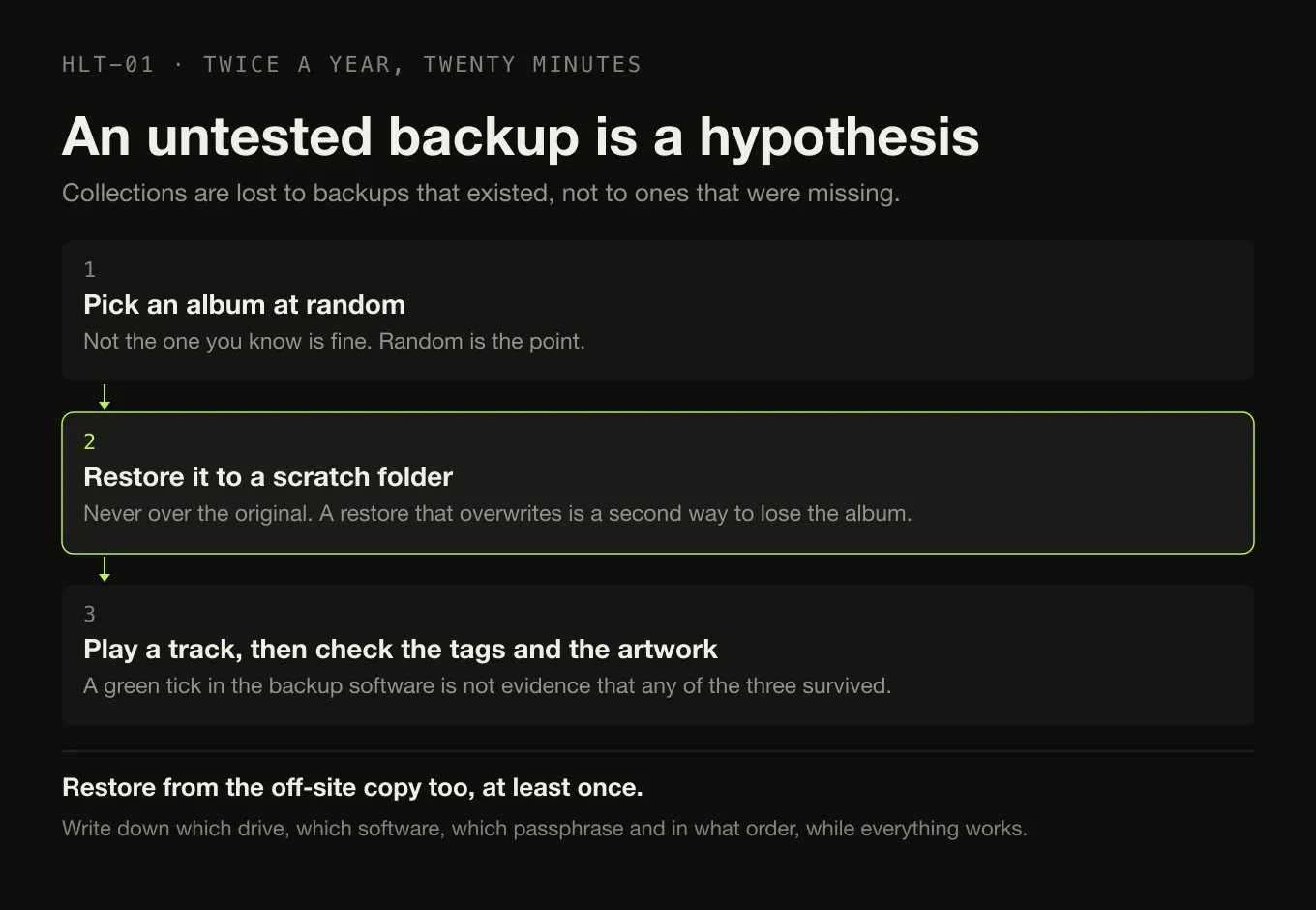
A backup you have never restored from is a hypothesis.
The failures that make people lose collections are almost never “there was no backup”. They are: the backup had been silently failing for eight months; the external drive was formatted for another operating system and would not mount under pressure; the encryption passphrase was in a password manager whose database was on the dead disk; the backup covered the folder the library used to be in.
Test it. Not by admiring the backup software’s green tick, but by doing this:
- Pick an album at random.
- Restore it from the backup to a scratch folder — not over the original.
- Play a track from the restored copy.
- Check the tags and the artwork survived.
Twenty minutes, twice a year, and once after any change to the setup. If you have an off-site copy, restore something from that one too at least once — it is the copy most likely to have been quietly broken for the longest, precisely because nobody touches it.
Write down what a full restore would involve while everything works: which drive, which software, which passphrase, in what order. A total loss is not the moment to reconstruct that from memory, and the note costs ten minutes now.
Drives do not last forever, including the backup ones
Every drive in this scheme will eventually fail, including the backup ones. That is expected rather than alarming, and it is planned for by replacement rather than by hope.
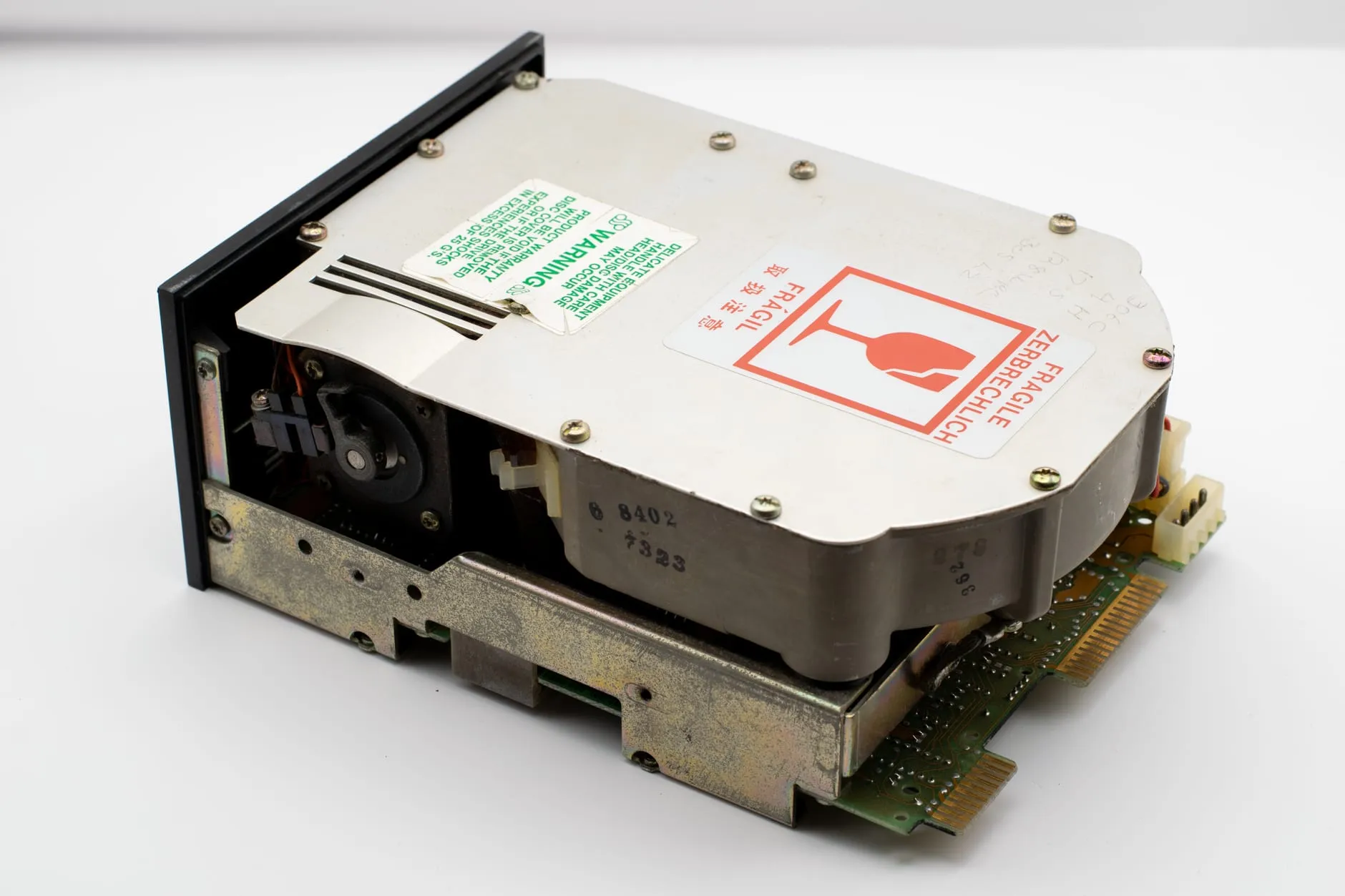
Replace on age and behaviour, not on failure. A drive that has been in service for several years, or that has started making noises, reporting SMART errors or disconnecting intermittently, has told you what it is going to do. Migrating a library to a new drive is an afternoon; recovering one from a failed drive is a specialist invoice, if it is possible at all.
Two habits that cost nothing: replace the working drive and the backup drive at different times, so you are never running two elderly drives simultaneously, and verify the new copy before wiping the old drive.
The minimum backup scheme that is genuinely enough
If the full scheme is more than you will actually do, this is the version worth having, and it is much better than nothing:
- The library in one place, so it can be copied in one operation.
- One external drive with an automated, versioned backup running to it.
- One off-site copy, even if it is a second drive at a relative’s house that you update twice a year.
- One restore test a year, of one album, played through to the end.
That protects against every common way a collection is lost, and it is a Sunday afternoon of setup for something that took ten years to assemble. Backup is one of four practices that keep a collection intact over decades; the other three are acquisition, standards and succession.
Sources
- The 3-2-1 backup rule — the rule’s formulation and its origin in Peter Krogh’s The DAM Book, written for photographers facing the same shape of problem
- RFC 9639 §8.2 — the FLAC STREAMINFO block — the MD5 checksum of the unencoded audio data, and why it exists: so a decoder can detect an error in the audio even when the bitstream is valid
- Organising a large local music library — the one-canonical-copy rule this scheme assumes
Common questions
What is the 3-2-1 backup rule?
Three copies of the data, on two different kinds of media or device, with one of them off-site. Peter Krogh set it out in that form in The DAM Book, written for photographers facing the same shape of problem as a music collector: a large, mostly static, irreplaceable pile of files. For a music library it means the working copy, a local backup drive, and something outside the building.
Does RAID count as a backup for a music library?
No. A mirrored pair protects against one drive dying, and nothing else. Deleting a folder, a batch re-tag that went wrong, corruption written through to both disks, theft of the enclosure and a flood all reach both members instantly. RAID buys uptime; a backup buys a second chance. A NAS with RAID is copy one, not copy two.
How much backup space does a music collection need?
Start from roughly 300 MB per CD-quality lossless album as a planning figure and check it against your own folder sizes. That puts 500 albums at about 150 GB, 2,000 at about 600 GB and 5,000 at about 1.5 TB. Size the backup drive above the archive rather than to it: versioned backups need headroom for history, and drives kept close to full are slower and more awkward to work with.
Is Backblaze or another cloud backup enough on its own?
It is a good third copy and a poor only copy. A continuous cloud backup covers fire, flood and theft, but the initial upload of a large lossless library takes weeks on a domestic connection and a full restore of several terabytes is not instant either. It also mirrors rather than accumulates: delete a file locally and it is deleted from the service too, once the version history expires.
Why does my external drive backup keep expiring?
On Backblaze’s default 30-day version history, an external drive has to be reconnected at least once every 30 days or its backed-up data is removed from the account, with alerts at 14, 21 and 28 days. For a music library on a drive you only plug in occasionally, that is a backup quietly expiring. Extended version history, or keeping the drive connected, is the fix.
How do I know my backup actually works?
By restoring from it, not by looking at the backup software’s green tick. Pick an album at random, restore it to a scratch folder rather than over the original, play a track from the restored copy, and check the tags and artwork survived. Twenty minutes, twice a year, and once after any change to the setup. A backup you have never restored from is a hypothesis.
- backup
- storage
- NAS
- external drive
- integrity
- 3-2-1