Music library storage requirements: how much space you need
Music library storage requirements, worked out for 1,000, 10,000 and 50,000 tracks in common formats, plus the backup capacity people forget when sizing a drive.
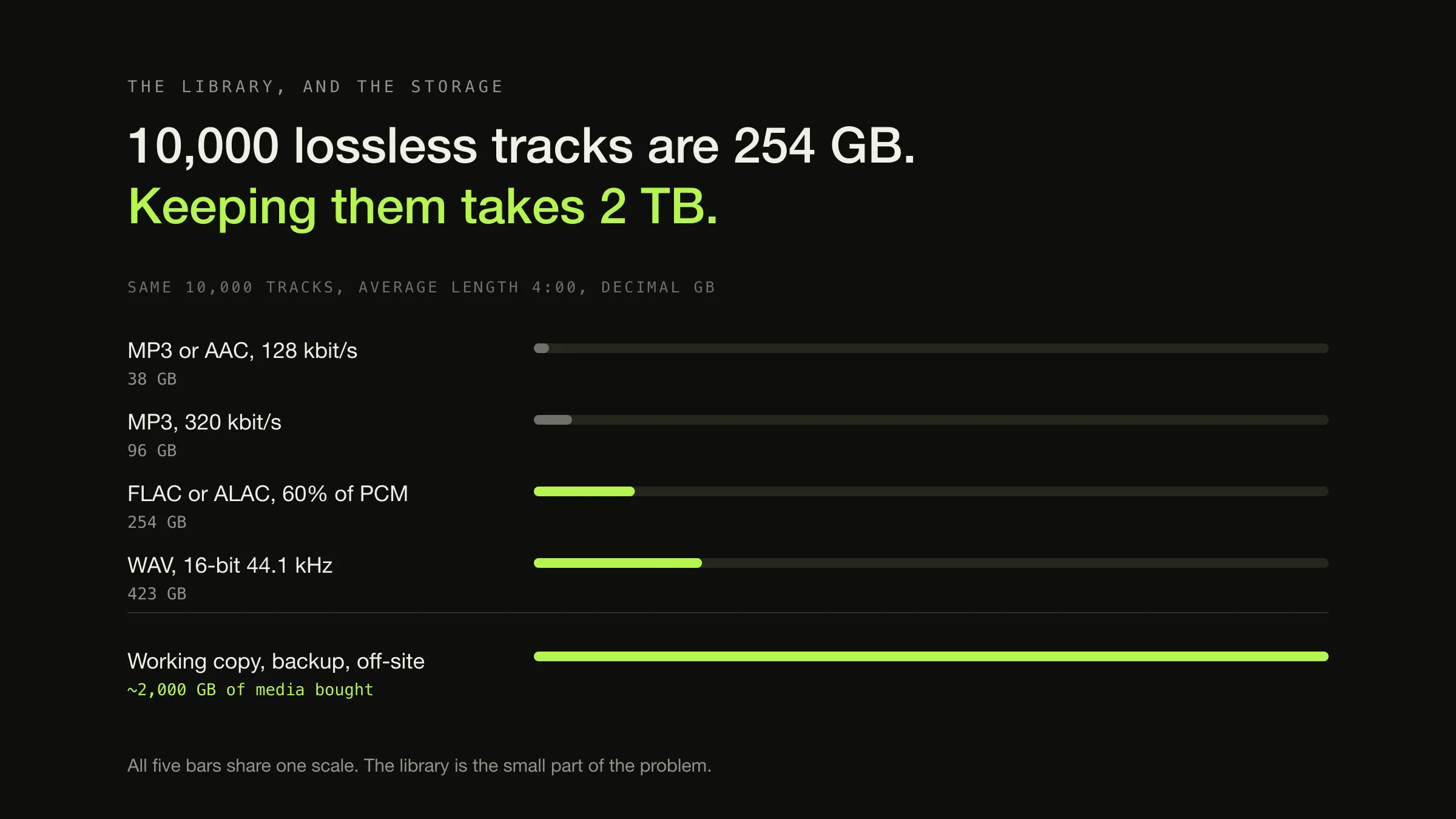
A library of 10,000 tracks needs roughly 38 GB as 128 kbit/s MP3, 96 GB at 320 kbit/s, 254 GB as FLAC or ALAC, and 423 GB as uncompressed WAV. Per track, at an average length of four minutes, that is 3.84 MB, 9.6 MB, 25.4 MB and 42.3 MB — so any collection size is one multiplication away. Every figure here is in decimal gigabytes of 1,000,000,000 bytes, which is the unit drives are sold in.
Then stop, because that is the size of the library and not the amount of storage to buy. A copy you can restore from and a copy that survives the building turn a 254 GB collection into a 750 GB purchase, and that gap is the reason this page exists rather than a calculator. If the next question is how to keep that collection usable as it grows, the guide to organising a large local music library starts with the folder and tag decisions that make these numbers practical.
The three assumptions every number below rests on
Named up front, because a storage estimate with hidden inputs is not reproducible.
- Average track length: 4:00, or 240 seconds. Change it and every total scales linearly — a 3:30 average makes everything 12.5% smaller.
- Twelve tracks per album, wherever a per-album figure appears.
- Decimal units. MB is 1,000,000 bytes, GB is 1,000,000,000, TB is 1,000,000,000,000. This is what Seagate and every other manufacturer means by those letters, so it is the unit that matches the drive you will buy.
Container overhead is ignored throughout, and that is safe rather than sloppy: a four-minute 16-bit 44.1 kHz stereo WAV written on macOS measured 42,336,044 bytes against a 42,336,000-byte payload. Forty-four bytes of header on 42.3 megabytes is 0.0001% and rounds away.
Per-track and per-library totals
| Format and setting | Per track at 4:00 | 1,000 tracks | 10,000 tracks | 50,000 tracks |
|---|---|---|---|---|
| MP3 or AAC, 128 kbit/s | 3.84 MB | 3.8 GB | 38 GB | 192 GB |
| MP3, 192 kbit/s | 5.76 MB | 5.8 GB | 58 GB | 288 GB |
| AAC, 256 kbit/s | 7.68 MB | 7.7 GB | 77 GB | 384 GB |
| MP3, 320 kbit/s | 9.60 MB | 9.6 GB | 96 GB | 480 GB |
| FLAC or ALAC at 50% of PCM | 21.2 MB | 21 GB | 212 GB | 1.06 TB |
| FLAC or ALAC at 60% of PCM | 25.4 MB | 25 GB | 254 GB | 1.27 TB |
| FLAC or ALAC at 70% of PCM | 29.6 MB | 30 GB | 296 GB | 1.48 TB |
| WAV or AIFF, 16-bit 44.1 kHz | 42.3 MB | 42 GB | 423 GB | 2.12 TB |
| WAV or AIFF, 24-bit 96 kHz | 138.2 MB | 138 GB | 1.38 TB | 6.91 TB |
Every cell is the same calculation: bitrate × 240 seconds ÷ 8, times the track count. The lossy rows are exact, because a bitrate is an instruction the encoder follows — a 256 kbit/s AAC encode of a four-minute source measured 7,726,535 bytes against the 7,680,000 the arithmetic predicts, 0.6% over, and that margin is the MP4 container. The lossless rows are a band, for reasons worth understanding before planning around them.
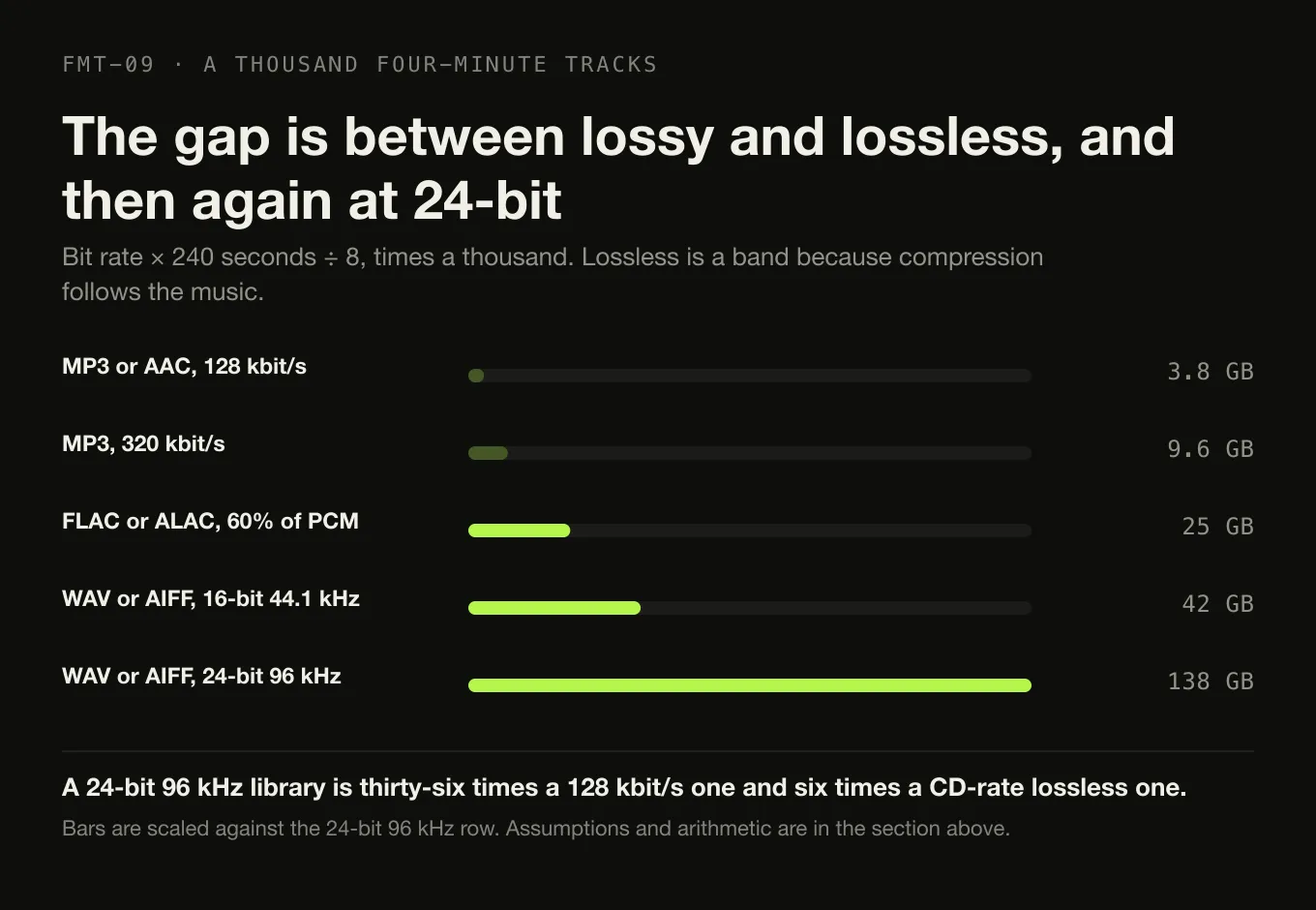
The 24-bit 96 kHz row is the cost of high-resolution files and nothing else. Whether that cost buys anything audible is a separate question this article does not attempt.
Lossless file size is a range, not a constant
A lossless codec has no bitrate you can set. Its file size is a result — an observation about how predictable the recording is — which is why “FLAC is X MB per minute” is not a fact about the format. Xiph.Org, who publish FLAC, put it directly: “the resulting bitrate is roughly proportional to the amount of information in the original signal”, and “you cannot control the bitrate much and the result can be from around 100% of the input rate (if you are encoding noise), down to almost 0 (encoding silence).”
Here is that span measured, so the shape of it is concrete. Four four-minute
deterministic test signals — not music — all 16-bit 44.1 kHz stereo, encoded
with Apple’s afconvert on macOS 26.5.2 (build 25F84):
| Signal | FLAC | Of uncompressed | ALAC | Of uncompressed |
|---|---|---|---|---|
| Digital silence | 34,678 bytes | 0.08% | 99,076 bytes | 0.23% |
| 440 Hz sine, channels identical | 4.49 MB | 10.6% | 5.14 MB | 12.1% |
| Seven tones plus low noise | 15.90 MB | 37.6% | 16.05 MB | 37.9% |
| White noise, channels independent | 42.36 MB | 100.06% | 42.36 MB | 100.06% |
Two things in that table matter for planning, and neither requires the signals to resemble music.
The ceiling is the uncompressed size. On the least compressible material possible, FLAC produced a file 25,446 bytes larger than the PCM payload it started from. So the WAV row of the table above is a hard upper bound for a lossless library: nothing you own will exceed it by an amount worth a decimal place. That is a useful thing to know when the alternative is guessing.
FLAC and ALAC are the same size class. FLAC came out slightly ahead on all four signals, which matches the “a few percent” already reported in the practical comparison between FLAC and ALAC. For sizing a drive, use one band for both and choose the format on tooling instead.
For real recordings, half to two-thirds of uncompressed is the usual span — the 50% and 70% rows above bracket it, with 70% carried as a conservative planning number rather than a typical one. Sparse acoustic material lands low; loud, dense, heavily limited mastering lands high. Xiph withdrew their own lossless codec comparison table on the grounds that it was “like grading one’s own exam”, which is a fair warning about anybody’s published ratio, this page included. The number to trust is your own, and the last section explains how to get it in about ten seconds.
Where the PCM figures come from
Uncompressed audio is the one case where the storage cost is fully determined, and the derivation is worth having because every other figure on this page is anchored to it:
sample rate × bit depth × channels = bits per second
44,100 × 16 × 2 = 1,411,200 bit/s

÷ 8         = 176,400 bytes per second
× 60        = 10,584,000 bytes per minute   (10.6 MB)
× 3,600     = 635,040,000 bytes per hour    (635 MB)
× 240       = 42,336,000 bytes per 4:00 track
At 24-bit 96 kHz the same multiplication gives 4,608,000 bit/s and 138.2 MB per four-minute track — 3.27 times the CD-standard figure. What bitrate actually means in each encoding system is the longer version of why only this row is deterministic.
Artwork is the overhead that gets away
Album art is stored per file when it is embedded and per folder when it is a sidecar, and at library scale those are not close to the same number.
The same cover image, two conventions
-
Embedded in every file
50.0 GB of artwork
1,000,000 bytes × 50,000 files
The image travels with the file, which is what you want when single tracks get copied to a phone or handed to another application. The cost is that the same twelve copies of one cover exist inside one album, and forty thousand more across the library.
-
One sidecar per album folder
4.2 GB of artwork
1,000,000 bytes × 4,167 folders
Stored once where it belongs, easy to replace in bulk, and invisible to anything that moves a single file out of its folder. Most players fall back to a cover.jpg or folder.jpg beside the tracks, so this is not an exotic choice.
At three plausible image sizes, across three library sizes:
| Artwork convention | 1,000 tracks | 10,000 tracks | 50,000 tracks |
|---|---|---|---|
| 500 KB embedded in every file | 0.5 GB | 5.0 GB | 25.0 GB |
| 1 MB embedded in every file | 1.0 GB | 10.0 GB | 50.0 GB |
| 500 KB as one sidecar per album | 0.04 GB | 0.42 GB | 2.1 GB |
| 1 MB as one sidecar per album | 0.08 GB | 0.83 GB | 4.2 GB |
These are scenarios, not typical values — the size of your covers depends entirely on what wrote them, and a ripper set to fetch the largest available image behaves very differently from one that resizes. The point of the table is the ratio rather than the row: at 50,000 tracks, the artwork decision is worth more than the difference between 128 and 192 kbit/s audio.
Two related notes. Covers much larger than about 1000 pixels square are indistinguishable in every player interface while multiplying by the track count — the same cover measured at four real resolutions runs from 22 KB to 1.22 MB, which is what that multiplication is actually multiplying. And a player’s own artwork cache is a separate copy again — Digr hashes extracted covers and stores each distinct image once, so forty tracks sharing a cover cost one image in the cache rather than forty.
The index, the cache, and the parts that round to nothing
A library application keeps a database. It is worth a sentence and not a section: a few hundred bytes of text per track, so 500 bytes across 50,000 tracks is about 25 MB — three ten-thousandths of a lossless library of that size. An artwork cache is larger and still small. Neither belongs in a capacity calculation; both belong in the list of things not to worry about.
Sidecar files are the same order: a .cue, a .log, a .m3u and an
accuraterip.log per album are kilobytes. If a rip produced a per-album folder
of text files, leave it there — it is the cheapest documentation a collection
will ever have.
Library size is not the capacity you need
This is the part the calculators leave out, and it is the part that costs money when it is wrong.
Sizing a 10,000-track lossless collection — 254 GB of audio
Copy 1 · the working library
500 GB drive 259 GB of audio and embedded artwork, plus room for the largest single import you are likely to make and a year of acquisition at your actual rate. Not 256 GB — a volume run to its last few percent is where imports fail and snapshots stop being kept.Backed up to
Copy 2 · local versioned backup
1 TB drive Larger than the source on purpose. Apple states that a Time Machine disk "should have at least twice the storage capacity of your Mac", because the first backup is everything and every one after it keeps history — and when the disk fills, old backups start being deleted.And copied off-site to
Copy 3 · off-site
500 GB, or cloud The copy that survives a fire, a flood or a theft. It only has to hold the library once, because it is a copy of the archive rather than a history of it.Three rules do most of the work:
- Size the working drive above the library, not to it. The number that matters is not a percentage; it is the largest single import you will make plus a year of acquisition at your own rate. If you rip two hundred discs a year, that is 60 GB of lossless headroom, and you know your own number better than any rule of thumb does.
- Size the backup destination above the source. Versioned backups keep history, and history is the whole value. Apple’s guidance for Time Machine — at least twice the capacity of what is being backed up — is a reasonable starting point for any versioned scheme.
- A lossy derivative set does not need backing up. If you keep 320 kbit/s copies for a phone, that is another 96 GB per 10,000 tracks on the working drive and nothing at all on the backups, because it can be regenerated from the archive.
Buying the drive is the easy half. Getting the collection onto it without the player losing track of every file is a procedure with a verification step in the middle of it, and it is the reason the working drive should be sized once rather than twice.
What that arithmetic is and how to run it is the subject of a backup scheme sized to a real collection, which also covers the parts capacity cannot solve: verifying the copies are still readable, and testing that a restore works.
Why the drive shows less than the box said
Briefly, because it is a units question rather than a missing-capacity one.
Manufacturers use decimal units. Seagate states that “all major disk drive manufacturers use decimal values when discussing storage capacity”, with a gigabyte at 10⁹ bytes and a terabyte at 10¹². Some operating systems divide the same byte count by 1,024 three times — the binary interpretation — and then print the label GB anyway, which is why “their new 1 Terabyte (1 TB, or 1000 GB) hard drive is reporting only about 931 gigabytes (GB) in usable capacity”, in Seagate’s words.
The unambiguous names for the binary units are GiB and TiB. On the machine used
for the measurements above, macOS reports its boot container as
994.7 GB (994662584320 Bytes) — 994,662,584,320 ÷ 10⁹ is 994.66, so that is a
decimal label, and the same volume is 926.4 GiB. Nothing is lost either way. Plan
in decimal, because that is what you are buying.
Measure your own library instead of estimating it
Every figure above is an estimate standing in for two numbers you can just look up: total duration and track count. With those, the average track length assumption disappears:
library bytes ÷ total seconds = your actual average data rateRun it on the collection you already have and you have a rate that accounts for your formats, your compression levels, your artwork convention and your material — which is strictly better than any table. Then multiply by the duration you expect to add.
Digr shows track, artist and album counts alongside total library duration on the view it opens on, which is exactly the input this needs; the byte total comes from the folder itself. There is no calculator in the app and this is not one — it is one division, and it beats the estimate every time. What the library view reports today is the short list of what those counters actually cover. For the collection you have not acquired yet, the acquisition-and-standards half of collection building is where the growth rate in the headroom rule comes from.
The short version
- Per four-minute track: 3.84 MB at 128 kbit/s, 9.6 MB at 320, about 25 MB lossless, 42.3 MB uncompressed.
- Per 10,000 tracks: 38 GB, 96 GB, 254 GB, 423 GB.
- Lossless has no fixed rate. Plan on half to two-thirds of uncompressed and treat uncompressed as the ceiling — that ceiling is measured, not assumed.
- Count the artwork. Embedded covers at 1 MB are 50 GB across 50,000 tracks; the same images as sidecars are 4 GB.
- Buy about three times the library, because one copy is not a collection you can keep.
Sources
- Storage capacity measurement standards — Seagate — “all major disk drive manufacturers use decimal values when discussing storage capacity”, gigabyte as 10⁹ and terabyte as 10¹² bytes, and the 1 TB drive “reporting only about 931 gigabytes (GB) in usable capacity” because some systems define a gigabyte as 1,073,741,824 bytes
- FLAC FAQ — Xiph.Org — “the resulting bitrate is roughly proportional to the amount of information in the original signal”, and that it “can be from around 100% of the input rate (if you are encoding noise), down to almost 0 (encoding silence)”
- RFC 9639 — Free Lossless Audio Codec (FLAC) — §1: FLAC compresses because “samples in audio signals tend to be highly correlated with their close neighbors”. The specification states no compression ratio, which is why this article gives a band rather than a figure
- Lossless codec comparison — Xiph.Org — the withdrawn comparison table, removed because it was “often out-of-date and like grading one’s own exam”, cited as the reason to distrust any published ratio including this page’s
- Back up your Mac with Time Machine — Apple and If Time Machine on your Mac recommends a larger backup disk — Apple — a backup disk “should have at least twice the storage capacity of your Mac”, because the first backup captures everything, later ones keep history, and a full disk causes the oldest backups to be deleted
- Digr — features — track, artist and album counts with total library duration on the library view, and the content-addressed artwork cache that stores one copy of a cover shared by many tracks
- Measurements taken locally on macOS 26.5.2 (build 25F84) with the system
afconvertanddiskutiltools. Four-minute 16-bit 44.1 kHz stereo deterministic test signals — silence, a 440 Hz sine, seven tones with low-level noise, and independent-channel white noise — encoded withafconvert -f flac -d flacandafconvert -f m4af -d alac, sizes read withls -l. AAC figure fromafconvert -f m4af -d aac -s 0 -b 256000. These signals demonstrate the range of lossless compression and are explicitly not representative of music
Common questions
How much storage do 10,000 songs need?
At an average track length of four minutes: about 38 GB as 128 kbit/s MP3 or AAC, about 96 GB as 320 kbit/s MP3, about 254 GB as FLAC or ALAC, and about 423 GB as uncompressed 16-bit 44.1 kHz WAV. Those are decimal gigabytes of 1,000,000,000 bytes. Add artwork — between 5 GB and 10 GB if a 500 KB to 1 MB image is embedded in every file — and then size the drive above the total rather than to it.
How big is a FLAC album?
Roughly 250 to 300 MB for a twelve-track CD-quality album, but FLAC has no fixed rate: the file size is a result of how compressible the recording is, not a setting you choose. Lossless encoding usually lands between half and two-thirds of the uncompressed size, which is 21 to 28 MB for a four-minute track at 16-bit 44.1 kHz stereo. Sparse acoustic material compresses much harder than dense modern mastering.
Does album art take up much space in a music library?
It can dominate the overhead. One 1 MB cover image embedded in every file across a 50,000-track library is 50 GB of artwork — more than the entire audio of the same library at 128 kbit/s. The same image stored once per album as a sidecar cover.jpg is about 4 GB. Neither is wrong, but the choice is worth tens of gigabytes at scale, and nothing in a player interface looks different for the extra space.
Why does my 1 TB drive show less than 1 TB?
Because two unit systems are in use and only one of them is on the box. Drive manufacturers use decimal units, where a terabyte is 1,000,000,000,000 bytes, and Seagate states this plainly. Some operating systems divide that byte count by 1,024 three times and still print the label GB, which turns 1 TB into about 931. No capacity is missing; the same number of bytes is being described in a different base.
How much bigger is a lossless library than an MP3 one?
About two and a half to seven times, depending on which MP3 you are comparing against. FLAC or ALAC at 60% of uncompressed is 25.4 MB for a four-minute track; the same track is 9.6 MB at 320 kbit/s and 3.84 MB at 128 kbit/s. Keeping both an archive and a portable set costs the sum of the two, which is often the right answer — the derivative can be regenerated, so it does not need backing up.
How much drive capacity should I buy for a music library?
Around three times the library, if you intend to be able to restore it. The working copy needs the library plus room to grow; a versioned local backup needs more than the source, and Apple recommends a Time Machine disk with at least twice the capacity of what it is backing up; and an off-site copy needs the library again. A 254 GB collection is comfortably a 750 GB purchase, and buying a drive that exactly fits is the mistake this arithmetic exists to prevent.
- storage
- disk space
- FLAC
- file size
- artwork
- capacity planning