How to fix incorrect music metadata
Seven different faults look identical on screen, and only three of them are a wrong tag. A diagnosis-first repair order, with a rollback gate before anything touches the whole library.
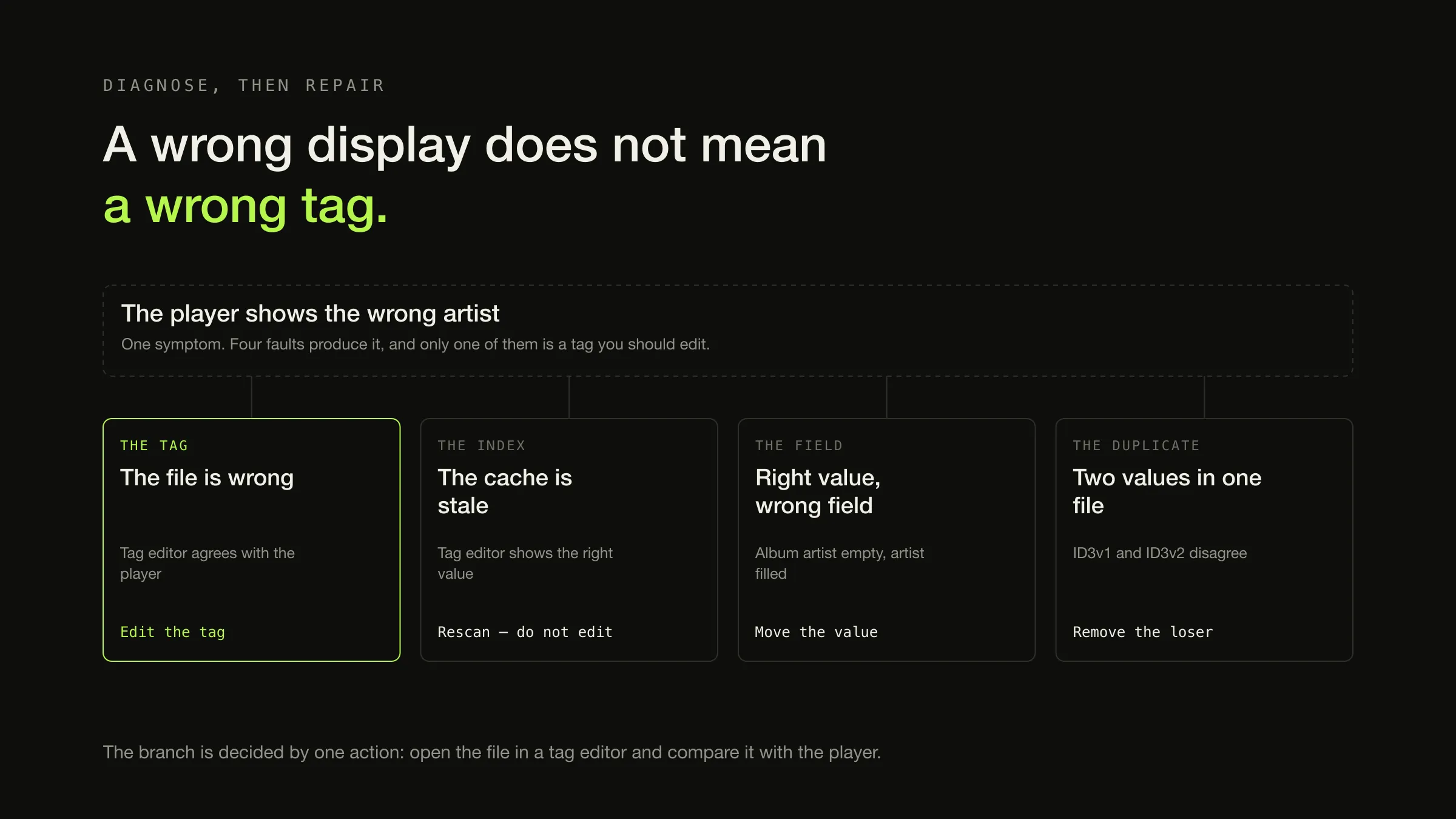
Before changing a tag, establish which of seven things is actually wrong. An album filed under the wrong artist looks the same on screen whether the tag in the file is wrong, the player’s index is stale, the player is reading a field you did not edit, or the file carries two competing values — and three of those are made worse by rewriting the tag.
The workflow is therefore: inspect the file, identify the fault, repair one album, verify it in the application that complained, and only then run the batch. The inspection step takes about a minute and is the difference between a fix and forty thousand files edited on a guess.
Seven things “wrong metadata” can be
| Symptom | What is actually happening | Inspect first | Safe fix |
|---|---|---|---|
| Wrong artist, album or title | The tag in the file really is wrong | The file, in a tag editor | Edit the tag, rescan |
| Correct in a tag editor, wrong in the player | The player’s index still holds what the file said at scan time | The same file in two applications | Rescan or rebuild the index — do not edit |
| One compilation has become forty albums | Album artist is empty, so the player fell back to track artist | The album artist field on every track | Set album artist across the record |
| Right value, wrong place on screen | The player reads a different field from the one you filled in | Which field holds the value you can see | Move the value to the field the player reads |
| Two players disagree about the same file | Competing tag systems or tag versions inside one file | Whether the file has more than one tag block | Remove the stale one, keep one system |
| Title truncated to thirty characters | An ID3v1 tag is being read instead of ID3v2 | Whether an ID3v1 tag is present | Remove ID3v1, or write both consistently |
| Everything is right and the lookup disagrees | The online source is wrong or ambiguous | The release you actually own, against the entry | Choose the right release, or fix the source |
Only rows one and three are the case the internet assumes. Rows two, four, five and six are all files that are already correct and displays that are not — and in every one of those, editing the tag is at best a no-op and at worst a second fault layered on the first.
Step 1 — read the file, not the screen
One symptom, four places the fault can be
-
Tag editor agrees with the player
The tag is wrong
Both are reading the same bad value, so the value is the problem. This is the only branch where editing the tag is the first move — and it is still worth doing on one album before the rest.
-
Tag editor shows the right value
The index is stale
The file is already correct and the player is showing a cached copy of what it read last time. Rescan the folder, or delete the library database and let it rebuild. Editing the tag here changes a value that was never wrong.
-
The value is in a different field
A field mismatch
Artist is filled in and album artist is empty, or the performer is in the composer field. The player is reading the field it always reads. Move the value rather than duplicating it into both.
-
Two values exist in one file
Competing tags
An ID3v1 tag alongside an ID3v2 one, or a Vorbis field that legitimately appears twice — the Vorbis specification allows it, since field names are "not required to be unique (occur once) within a comment header". Which one wins is the reading application's choice, so remove the loser instead of arguing with it.
Use anything that reads the raw tag — Picard, Kid3 and Mp3tag all do, and so does any tool that shows you field names rather than a tidied summary. What you are looking for is not “does this look right” but three specific things:
- Which field holds the value you can see? Artist and album artist are different fields with different jobs, and they are stored under different names in each tagging system.
- Is there more than one tag block? An MP3 can carry an ID3v1 tag and an ID3v2 tag at once, with different contents. An ID3v1 tag is 128 bytes with fixed-length fields, which is why a title that stops at thirty characters is almost always this.
- Does any field appear twice? In Vorbis comments this is legal rather than corrupt, which makes it easy to create by accident and invisible in tools that show one value per field.
Step 2 — rule out the stale index before touching anything
This is the case most guides turn into a ritual instead of a diagnosis. One page in the current results advises deleting the file from your player and copying the newly tagged version back in, because “most players require this to trigger a fresh scan”. That works, and it is a workaround for a cache dressed up as a procedure — and it involves deleting music to fix a database.
A player’s library is an index: a copy of what your files said the last time they were read. Nothing about correcting a file reaches into that copy. Until something re-reads the file, the old value is what you see, and you can prove which situation you are in without editing anything:
- Open the file in a tag editor. If the tag editor shows the correct value, the file is fine.
- Ask the player to rescan that folder.
- If it is still wrong, delete the player’s library database and let it rebuild.
That third step sounds drastic and is usually not, because a well-built index is derived data — Digr’s SQLite index, for example, “is a cache derived from your files: delete it and a rescan rebuilds it exactly”. What you lose is anything the application stored only in its own database, which is exactly why ratings and play counts belong in the file where possible.
Step 3 — repair one album, and put the gate before the batch
The repair order, with the gate that makes it safe
1 · Preserve
A copy you can go back to A tagger writes into your files. Before the first write, make sure the album exists somewhere you are not editing — a current backup counts, a copy of the folder counts, and "I will be careful" does not.Then
2 · Narrow the blast radius
Editing only, no moving or renaming In Picard, "Move files when saving" and "Rename files when saving" are independent options and both should be off for a first pass. A repair that also relocates files turns one mistake into two, and the second one is harder to see.Then
3 · Repair one album
One record, every track Not one file. Album artist, album title, disc and track numbering are whole-album properties — they only fail visibly in aggregate, so a single-track test cannot detect the failure you are repairing.Then
4 · The gate
Rescan and look at it in the player that complained One album, one grouped record, the right cover, the tracks in order, nothing renamed. If any of that is wrong, you have found it at a cost of one album. This is the whole point of the sequence and it is the step people skip.Only then
5 · The batch
The same operation, more records In tranches you can still inspect — a few albums, then a few dozen. A tagger that can change forty thousand files in one action can also produce forty thousand wrong files in one action, and the recovery position is the copy from step one.Two additions to the sequence that are easy to leave out and expensive to discover later:

Check the multi-value fields specifically. A track credited to two artists is the single most common place tags stop round-tripping cleanly between formats, and a batch repair is exactly the operation that flattens two values into one string. Look at one such track before and after.
Check the artwork separately from the tags. Cover art is stored in its own place in every format, so a tag repair can succeed completely and leave the art untouched, missing, or duplicated. Which place, and why an application can show nothing for an album whose cover is plainly sitting in the folder, is the artwork storage question.
Why an edit can appear to work and change nothing
This is its own branch, and it is not in the seven causes above because it happens after you have correctly diagnosed a wrong tag. Picard’s own troubleshooting documentation names four reasons a write does not land, and none of them is a bad diagnosis:
- Saving is not enabled. The relevant setting has to be on.
- The value was set in the file naming script rather than a tagging script. Picard’s documentation is explicit that tags created there “will not be written to the output files”, because that script “is only used for developing the file name and directory structure for the output”.
- The tag name starts with an underscore. Those “are considered variables for use within Picard rather than tags”, and are never written out.
- The file type does not support that tag. In Picard’s words, “not all file types support all the tags Picard supports” — which is a property of the container’s tagging system rather than of the tool.
The last one is worth internalising, because it is the case that makes people distrust their tools. If a field simply refuses to persist in one format and works in another, the honest answer is usually that the two tagging systems do not have the same vocabulary, and the value needs to go somewhere the format actually has a home for.
Why album art comes back
Because there are usually three copies of it, and you deleted one.
| Where it lives | What removes it | What restores it |
|---|---|---|
| Embedded in each audio file | A tag editor, per file | Nothing — this is the durable copy |
A cover.jpg or folder.jpg beside the tracks | Deleting the file | A ripper or tagger writing it again |
| The player’s artwork cache | Clearing the cache, or rebuilding the index | The next scan, from either of the two above |
The precedence differs between applications — some prefer the embedded image, some prefer the folder image — so the reliable way to change a cover is to change it in both of the first two rows and then let the third rebuild. Deleting the cache alone accomplishes nothing that survives a rescan, which is precisely what “it keeps coming back” describes.
Tools that write tags correctly
Three worth knowing, with what each is actually for. This is not a ranking and none of them is a purchase recommendation — it is a note on capability, platform and licence, because that last column is the part most advice leaves out.
| Tool | What it is for | Platforms | Licence |
|---|---|---|---|
| MusicBrainz Picard | Identifying releases against MusicBrainz, including by audio fingerprint, and writing all three tagging systems correctly | Cross-platform | Free, GPL 2.0 or later |
| Kid3 | Direct, precise field editing, and converting between tag versions | Linux, Windows, macOS, Android | Free software |
| Mp3tag | Bulk field editing and find-and-replace across many files | Windows; a separate Mac version exists | Windows build free to use; Mac version is a paid app with a 7-day trial |
The distinctions that matter in practice:
- Picard is the one that knows what your record is. It is “a cross-platform
music tagger powered by the MusicBrainz database”, and it can identify files “by
the actual music, even if they have no metadata” using AcoustID audio
fingerprints. That is the tool for a folder of
track01.mp3with nothing in it. - Kid3 is the one for tag-version problems. It edits ID3v1.1 and every ID3v2.3 and ID3v2.4 frame, and — the useful part — converts between ID3v1.1, ID3v2.3 and ID3v2.4. That is the fix for a file carrying two tag blocks that disagree.
- Mp3tag is the one for mechanical bulk work, and the licence differs by platform: the long-standing Windows build and the Mac version are not the same product on the same terms.
If the choice of tool is the part you are stuck on rather than the procedure, the wider comparison of library management software sorts a dozen of them by the only question that matters before you run a batch: what each one changes on disk, and whether you can get it back.
When the online data is the thing that is wrong
A lookup can propose a confident, precise, wrong answer. The usual reasons are structural rather than careless: the same album exists as several releases with different track lists and countries, a deluxe edition and a reissue are different records, and a compilation appearance is not the original album.
That is worth understanding before trusting a match, because MusicBrainz is a community-edited database with an entity model of its own — releases, recordings and release groups are different things, and picking the wrong one produces metadata that is internally consistent and not yours. When the entry really is wrong, the database is editable, and fixing it there fixes it for everyone who looks it up afterwards.
What Digr does and does not do here
Digr cannot edit tags today. Scanning opens your audio files to read tags and artwork and never writes to them — nothing is copied, renamed, moved or re-tagged. Every repair described above happens in one of the tools in the table, and this article recommends them because they are the answer, not as a placeholder.
What Digr does contribute to the workflow is the shortlist. The library health views name the tracks with unknown artist and unknown album, along with missing files, likely duplicates and tracks with no artwork, and they are inspect-only: nothing is edited or deleted. That is the set of albums worth working through, which is otherwise a browsing exercise.
The duplicates category is worth treating as a separate job with its own rules. A metadata match groups files that were described the same way, and what a duplicate actually is turns out to be four different relationships — one of which is a live take or a remaster that should not be touched at all.

Metadata editing is planned rather than absent. Manual editing for a track, an album or a selection; explicit tag writing that only writes what you confirmed; MusicBrainz lookup for releases and recordings with confidence scoring on every proposed match; a chooser for ambiguous releases rather than picking one and hoping; Cover Art Archive artwork lookup; and undoable metadata changes — all of it is a 3–6 month roadmap item, planned as part of Digr Free, because fixing a wrong album title is not a premium feature.
What is deliberately not planned is the thing this whole article is a defence against: there will be no “fix my whole library” button that rewrites forty thousand files from a lookup service. Batch editing will mean batch review, then a change you confirmed and can undo. A lookup should propose; you decide.
Finding the broken records in the first place is a maintenance habit rather than a project, and ten minutes a month is the version that works. Before the first repair pass, the copy in step one is not theoretical: it is whatever backup scheme you actually have.
The short version
- Read the file before you edit it. One comparison between a tag editor and the player eliminates half the possible causes.
- A stale index is not a wrong tag. Rescan, or rebuild the index. Do not edit, and do not delete music to force a re-import.
- Album artist is the field behind the most dramatic symptom — the compilation that became forty albums.
- Repair one album, verify it in the application that complained, then batch. The gate is the procedure.
- If the edit did not take, suspect the tool’s configuration or the format’s vocabulary before suspecting your diagnosis.
- Artwork exists in three places. Change two and rebuild the third.
- A lookup proposes. You decide which release you actually own.
Sources
- Tags are not updated or saved — MusicBrainz Picard — the four documented reasons a write does not land: saving not enabled, tags set in the file naming script which “is only used for developing the file name and directory structure”, tag names beginning with an underscore being “variables for use within Picard rather than tags”, and “not all file types support all the tags Picard supports”
- File Naming Options — MusicBrainz Picard — “Move files when saving” and “Rename files when saving” as independent options, cited for the instruction to disable both during a first repair pass
- MusicBrainz Picard — “a cross-platform music tagger powered by the MusicBrainz database”, licensed “under GPL 2.0 or later”, identifying files by AcoustID audio fingerprint “even if they have no metadata”, and downloading cover art
- Kid3 — platforms “Linux (KDE or only Qt), Windows, macOS and Android”, editing ID3v1.1 and all ID3v2.3 and ID3v2.4 frames, editing tags of multiple files, and converting “between ID3v1.1, ID3v2.3 and ID3v2.4 tags”
- Mp3tag for Mac — the Mac version as a paid application with a “free 7-day trial”, and its supported formats, cited for the platform-and-licence distinction against the Windows build
- Ogg Vorbis I format specification: comment field and header specification — Xiph.Org — field names “are not required to be unique (occur once) within a comment header”, which is the mechanism behind a file legitimately carrying two values for one field
- Digr — features and roadmap — audio files opened read-only with nothing written; the SQLite index as “a cache derived from your files — delete it and a rescan rebuilds it exactly”; inspect-only health views naming unknown artist and unknown album; and metadata editing, MusicBrainz lookup with confidence scoring, an ambiguous-release chooser and undoable changes as planned Free work at the 3–6 month horizon
Common questions
How do I edit song metadata?
With a dedicated tag editor, not with the player that is showing the problem. MusicBrainz Picard is free, cross-platform and writes ID3, Vorbis comments and MP4 atoms correctly; Kid3 runs on Linux, Windows, macOS and Android and can convert between ID3v1.1, ID3v2.3 and ID3v2.4; Mp3tag is the long-standing Windows tool and now has a separate paid Mac version. Whichever you use, repair one album first, confirm the result in the player that complained, and only then run the batch.
Why is my music showing the wrong artist?
There are four common reasons and only two of them are a wrong tag. The artist tag inside the file may genuinely be wrong; the player may be reading a different field from the one you edited, most often falling back to the track artist because album artist is empty; the player’s own library index may still be holding what the file said when it was last scanned; or the file may carry two competing values in different tag systems or tag versions. Read the file with a tag editor before changing anything — that one step tells you which.
Why does album art keep coming back after I delete it?
Because the same image usually exists in three places: embedded inside each audio file, as a cover.jpg or folder.jpg beside the tracks, and in the player’s own artwork cache. Deleting one of those leaves the other two, and the next scan restores the picture from whichever it finds. To remove artwork properly, remove the embedded image from the files with a tag editor, delete the sidecar image, and then have the player rescan so its cache is rebuilt from the corrected files.
Why do the same tags look different in two different players?
Because the two applications are reading different fields, or reading the same file’s two tag systems in a different order. A file can carry both an ID3v1 and an ID3v2 tag with different values, a Vorbis comment field can legitimately appear twice, and album artist is stored under a different name in each tagging system. It is not a display bug and neither player is lying — they are answering the same question from different data in the same file.
Can MusicBrainz fix my tags?
It can supply the correct values, which is not the same as fixing anything by itself. MusicBrainz is an open, community-edited music metadata database; a tagger such as Picard looks a release up in it and proposes values, and you decide whether the match is right before anything is written. Because the database is edited by people, an entry can itself be wrong or ambiguous — which is why a lookup should be treated as a well-informed proposal rather than an answer.
Should I rename the files or edit the metadata?
Edit the metadata; rename only if you want to. Every modern player builds its library from the tags inside the file, so a correct filename with a wrong tag fixes nothing you can see in a player. The reverse also holds: correcting a tag does not rename anything unless you asked a tagger to rename from the corrected tags. Filenames are for humans, backups and other tools, and they are worth keeping tidy for those reasons rather than for the player.
- metadata
- tagging
- ID3
- MusicBrainz Picard
- Mp3tag
- Kid3
- repair