How to play local music files on a Mac
Which formats macOS decodes, what Quick Look and the Music app will and will not do with a folder of albums, and the point at which you need something that indexes a library.
On a Mac, any audio file that macOS can decode plays without installing anything: select it in Finder and press the space bar for Quick Look, or open it in QuickTime Player. That covers MP3, AAC, M4A, Apple Lossless, WAV, AIFF and — since macOS 10.13 High Sierra — FLAC.
Two things break that simple story, and they are the reason this article exists.
- The Music app is fussier than macOS is. The encoders it carries are AAC,
AIFF, Apple Lossless, MP3 and WAV. FLAC is not one of them, so a
.flacfile cannot join its library — even though Quick Look plays that same file. - Playing a file and having a library are different problems. Quick Look has no queue, no album grouping and no search across tags. Once a folder becomes a collection, you need something that indexes it.
What macOS decodes, tested rather than assumed
The table below was verified on macOS 26.5.2 (build 25F84) using the
system’s own afconvert and afinfo tools. Naming the build matters: format
support has changed across releases, and an undated list of codecs is a list
that was true once.
| Format | Quick Look and QuickTime | The Music app | Note |
|---|---|---|---|
| MP3 | Yes | Yes | Universally handled |
| AAC in .m4a | Yes | Yes | The default for iTunes Store purchases and CD imports |
| ALAC in .m4a | Yes | Yes | Apple’s lossless codec, same container as AAC |
| WAV | Yes | Yes | Uncompressed, weak metadata |
| AIFF | Yes | Yes | Uncompressed, Apple’s own |
| FLAC | Yes | No | Decoded by the system since 10.13; not a Music app format |
| OGG Vorbis | Not in practice | No | Listed by afconvert; unsupported in Safari, and not encodable |
The FLAC row is the one worth internalising. Apple added FLAC decoding to the
system media stack in macOS 10.13 High Sierra, and Safari has supported FLAC in
the HTML <audio> element since Safari 11 — so a Mac plays FLAC. The Music
app simply does not. Reading the encoder names out of the Music application
binary on this release returns AAC Encoder, AIFF Encoder, MP3 Encoder,
WAV Encoder and AppleLossless, and the only occurrence of FLAC anywhere in
it is the MIME type string audio/flac — a label, not a codec.
The OGG row is more interesting than it looks, and it is the one row here worth
stating carefully. Running afconvert -hf on this release prints
'Oggf' = Ogg (.opus, .ogg, .oga) with 'vorb' among its data formats, which
reads like support. It is not: asking the same tool to encode Vorbis fails
outright, with ExtAudioFileSetProperty ('cfmt') failed ('fmt?'). A format
appearing in a capability table is not the same as a format that works.
Decoding is the half that matters for playback, and the decisive fact is at the
browser layer: Safari does not support Vorbis in the HTML <audio> element at
all. Any player that hands files to the system’s web media stack — which is how
a great many Mac applications, Digr included, actually play audio — therefore
fails on a Vorbis file regardless of what the format table says. Opus in an Ogg
container is a separate and better-supported case. If your collection is Ogg
Vorbis, expect to need a player that carries its own decoder.
One honesty note on the table above: the Vorbis row could not be tested by playing a file, because macOS cannot produce one and no third-party encoder was installed on the machine used. It rests on Safari’s documented lack of Vorbis support and on the failed encode, not on a playback attempt.
Verifying a file yourself
afinfo is installed on every Mac and answers the two questions that actually
matter when something will not play — what the file really is, and whether the
system can read it:
afinfo ~/Music/album/01\ track.flacA file the system cannot decode produces an error rather than a format line. That is a faster diagnosis than any conversion attempt, and it distinguishes “my player is broken” from “this container is not supported here”.
Finder and Quick Look: the fastest path, and its ceiling
Quick Look is genuinely good for one file. Select it, press the space bar, and audio plays with a scrubber. QuickTime Player does the same with a window and slightly more control. Both use the system decoders, so both play FLAC.
What neither does:
- No queue. A track ends and playback stops. Selecting twelve files does not produce an album.
- No library. There is nothing that groups by album artist, nothing that handles a compilation as one record rather than forty, and no browsing by anything except the folder you are standing in.
- No tag search. Finder searches filenames and Spotlight metadata; it does not let you find every track where the album artist is one thing and the track artist another.
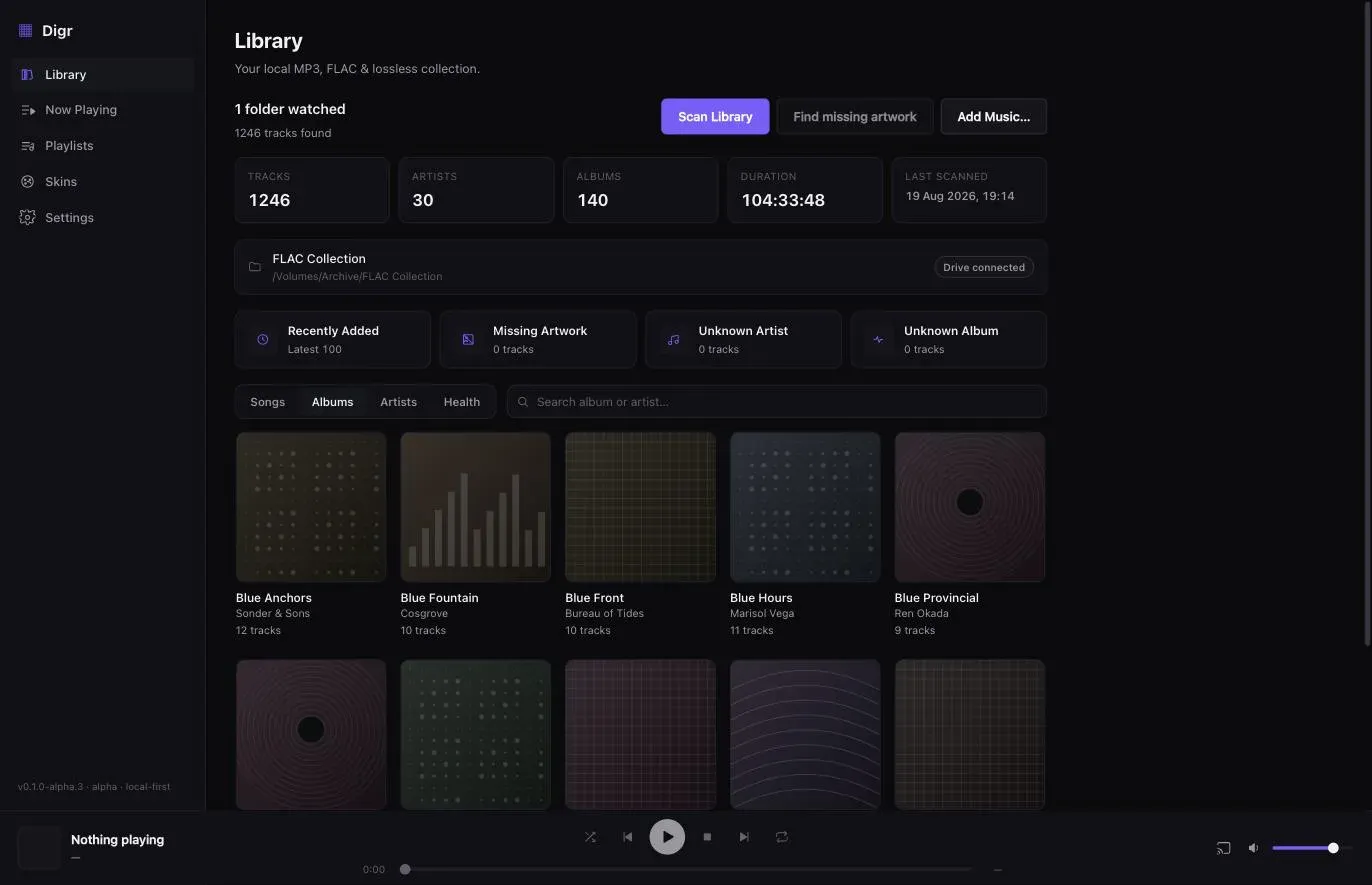
- No collection view. Nothing tells you which of your 4,000 files are missing artwork or have an empty artist tag — the two failures that make a library look broken.
That list is the honest boundary. For an album you just downloaded and want to hear once, Quick Look is the correct tool and installing software would be silly.
The Music app, and the two ways it takes your files
If your collection is MP3, AAC or Apple Lossless, the Music app is a reasonable answer, and it is already installed. The part worth getting right is how it takes possession.
Apple documents two distinct operations:
- File > Add To Library — “add the songs to your library, but not copy them to your Media folder”.
- File > Import — “import the songs into your library and copy them to your Media folder”.
By default the app “places a copy of each audio file in the Music folder (Home/Music/Music) and leaves the original file in the current location”. For a collection you have already organised into folders, that is the wrong default twice over: it doubles your disk usage, and it leaves two sets of files that drift apart the moment you edit a tag in one of them. If you use the Music app with an existing collection, turn off Copy files to Music Media folder when adding to library first. Every default the Music app applies to a file you own, and the switch that stops each one, is set out with Apple’s own wording alongside it.
And then there is FLAC. There is no setting for this; the app does not handle the format. The options are:
- Use a different player. Nothing about a FLAC collection requires Apple software, and the system decodes the format regardless of which application asks it to.
- Convert to Apple Lossless. ALAC and FLAC are both lossless, so transcoding between them is exact — the decoded samples are identical. FLAC versus ALAC on macOS covers when that trade is worth making and what you give up in tooling.
What you should not do is convert FLAC to AAC or MP3 to make the Music app happy. That is a lossy re-encode of an archival file, and it is irreversible. Lossless versus lossy explains why the direction of that conversion is the whole problem.
When a folder becomes a library
There is a size at which the job changes. It is not a number of tracks so much as a set of questions you start wanting answered:
- Show me everything by this artist, including the compilations they appear on.
- Play this album and then keep going.
- Which of these files has no artwork?
- Where did that album go — is the file missing, or the drive?
- Play this on the kitchen speaker.
None of those are playback questions. They are index questions, and answering them requires software that has walked your folders, read the tags inside each file, and kept a database of what it found.
One file, a folder, or a collection
-
One file, once
Quick Look · QuickTime
Nothing to install
Space bar in Finder, or open in QuickTime Player. Uses the system decoders, so FLAC works. No queue, no library, no browsing by tag.
-
A managed library
The Music app
Already installed
Real library features, and it wants to copy your files into its own folder unless you tell it not to. AAC, AIFF, Apple Lossless, MP3 and WAV only — no FLAC, at all.
-
An indexed collection
A local-library player
Files stay where they are
Points at the folders you already have, reads the tags in place, and builds an index it can rebuild. Handles whatever its decoder path handles, which usually includes FLAC.
Where Digr fits, and what it does not do
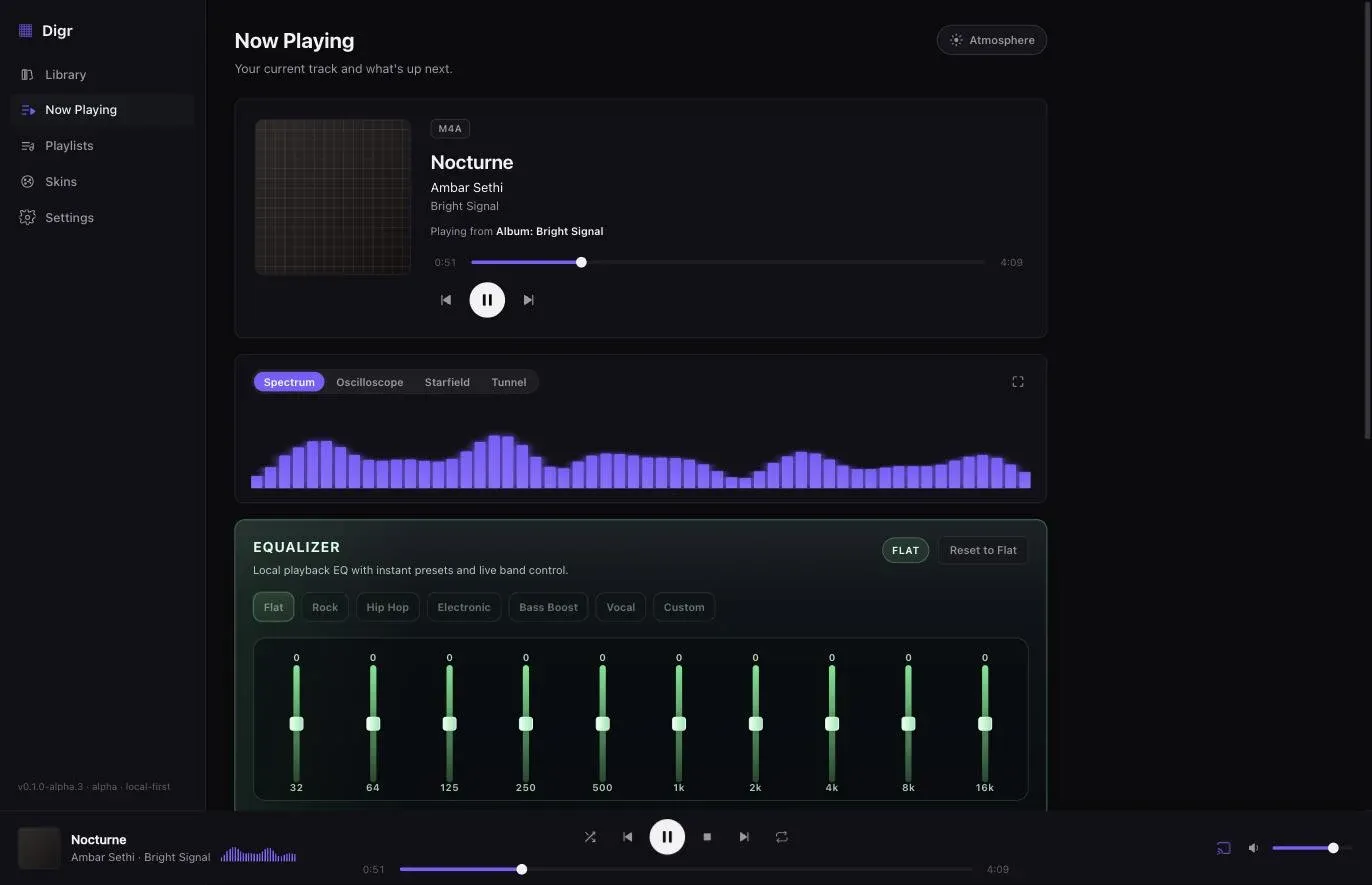
Digr is a local-library player for macOS, and the reason it appears in this
article is that it is built around the third lane above. What follows is what it
does today, at v0.1.0-alpha.3 — not a roadmap.
- It indexes folders you nominate, recursively, and leaves the files alone. Nothing is copied, renamed, moved or re-tagged. Audio files are opened read-only.
- It indexes MP3, FLAC, ALAC, M4A, AAC, WAV and OGG for tags, artwork and duration.
- It plays MP3, FLAC, ALAC, M4A, AAC and WAV. Local playback hands the file to the macOS media stack, which is exactly why the format list matches the system’s rather than exceeding it.
- OGG is indexed but does not play. The file appears in your library and fails at playback with a specific per-track reason, because the system stack will not decode Vorbis. That is a current limitation, stated plainly, and a Digr-side decoder is a roadmap item rather than something that works now.
- An external drive going away marks the folder offline instead of deleting the tracks, and reconnecting it remaps the indexed paths.
- Google Cast is the one network output. Chromecasts, Google Home speakers and Cast speaker groups are discovered on your LAN, and the original file is streamed to the device rather than re-encoded. AirPlay, DLNA and UPnP are not implemented.
It is also an alpha with no public download yet, which is the honest headline; what works today is the complete list, and it is shorter than the roadmap. Once a file plays and the question becomes which application should own the whole collection, the Mac shortlist for local libraries compares seven of them on the minimum macOS, the Apple silicon status and the licence each vendor publishes.
When a file will not play
In rough order of likelihood:
- The container is not supported by whatever is decoding it. OGG Vorbis
through the system stack, or FLAC in the Music app. Check with
afinfobefore assuming the file is broken. - The extension is lying about the contents. An
.m4aholds either AAC or Apple Lossless, and a file renamed from.flacto.m4ais still a FLAC. Formats and containers covers why the extension is the wrapper rather than the codec. - The drive is not mounted. A library that indexed an external drive still lists the tracks; the files are simply not reachable. This is the failure that most often looks like corruption and is not.
- The file is genuinely damaged. An incomplete download or a bad copy.
afinforeporting a duration that does not match the track is the tell. - Digital rights management. Older iTunes Store purchases that are not iTunes Plus songs are restricted: Apple’s own guidance is that “you can convert iTunes Store purchases only if they’re iTunes Plus songs”, and the same restriction is why they will not open in arbitrary software.
Getting a folder into a state where none of this happens is a separate job, and mostly a tagging one — organising a large local library covers the folder layout, and music metadata tags covers what the player is actually reading out of each file.
Sources
- Import items already on your computer — Apple Support, Music User Guide for Mac — “Choose File > Add To Library to add the songs to your library, but not copy them to your Media folder”; “Choose File > Import to import the songs into your library and copy them to your Media folder”; and the default behaviour of placing “a copy of each audio file in the Music folder (Home/Music/Music)”. Checked 22 August 2026
- Convert a song to a different file format with the Apple Music app — Apple Support — the Import Using menu as the place the app’s encoder is chosen, naming MP3 and Apple Lossless Encoder as its compressed options and AIFF and WAV as its uncompressed ones; and “you can convert iTunes Store purchases only if they’re iTunes Plus songs”. Checked 22 August 2026
- Deliver a better HLS audio experience — WWDC20, Apple — Apple confirming that FLAC and Apple Lossless “have been available for file-based playback for quite some time”, and that AVPlayer supports FLAC channel configurations up to eight channels
- Web audio codec guide — MDN — FLAC supported in Safari from version 11; Vorbis listed as unsupported in Safari for the HTML
<audio>and<video>elements - Supported Audio File and Data Formats in OS X — Apple Developer (archived) — the historical Core Audio format list, which contains neither FLAC nor Vorbis, illustrating that the current list is a later addition
- Local verification on macOS 26.5.2 (build 25F84):
afconvert -hffor the format table; successful FLAC, ALAC, AAC and AIFF encodes; theExtAudioFileSetProperty ('cfmt') failed ('fmt?')error on an attempted Vorbis encode; and the encoder names present in/System/Applications/Music.app—AAC Encoder,AIFF Encoder,MP3 Encoder,WAV Encoder,AppleLossless, with no FLAC encoder
Common questions
Can macOS play FLAC files?
Yes. The system media stack has decoded FLAC since macOS 10.13 High Sierra, so a FLAC file plays in Quick Look, in QuickTime Player, and in Safari through the HTML audio element. The exception is the Music app, whose encoders are AAC, AIFF, Apple Lossless, MP3 and WAV — it will not add a .flac file to your library. That is an application limitation rather than an operating-system one.
Why will the Music app not import my FLAC files?
Because FLAC is not one of the formats the Music app handles. The encoders it carries are AAC, AIFF, Apple Lossless, MP3 and WAV, and no setting adds a sixth. macOS itself decodes FLAC perfectly well, so the practical choices are a player that is not the Music app, or converting the file to Apple Lossless — which is a lossless conversion and does not degrade the audio.
Does macOS play OGG Vorbis files?
Not reliably. Ogg Vorbis appears in the format table the system afconvert tool prints, but that same tool cannot encode it, and Safari does not support Vorbis in the HTML audio element at all — so any player that hands files to the system web media stack will fail on a .ogg file. Opus in an Ogg container is a separate case and is much better supported. If you have a Vorbis collection, expect to need a player that ships its own decoder.
What is the difference between Add To Library and Import in the Music app?
Apple documents them as two different operations. Add To Library adds the songs to your library without copying them to your Media folder; Import adds them and copies them. Which one runs by default depends on the “Copy files to Music Media folder when adding to library” setting, and it matters because the copying version leaves you with two sets of files to keep in step and twice the disk usage.
Do I need a music player if I already have Finder?
For one file, no — the space bar previews it and QuickTime Player will open it. For a collection, yes. Finder shows you filenames in folders; it cannot group thousands of tracks by album artist, cannot queue an album and continue into the next one, cannot search across embedded tags, and cannot tell you which of your files have no artwork. Those are library problems rather than playback problems.
Where should my music files live on a Mac?
Wherever you already keep them, including an external drive, provided your player indexes folders rather than requiring a managed library. The Music app’s default is to copy everything into ~/Music/Music, which duplicates a collection you already organised. A player that reads your folders in place leaves one authoritative copy of each file, which is also what makes a backup routine straightforward.
- macOS
- local files
- FLAC
- ALAC
- Music app
- Quick Look
- playback