Digr vs Apple Music for a library of local files
Three separate things share the name Apple Music, and a subscription is required for exactly one of them. This compares the Music app’s local library with Digr, not a streaming service with a player.
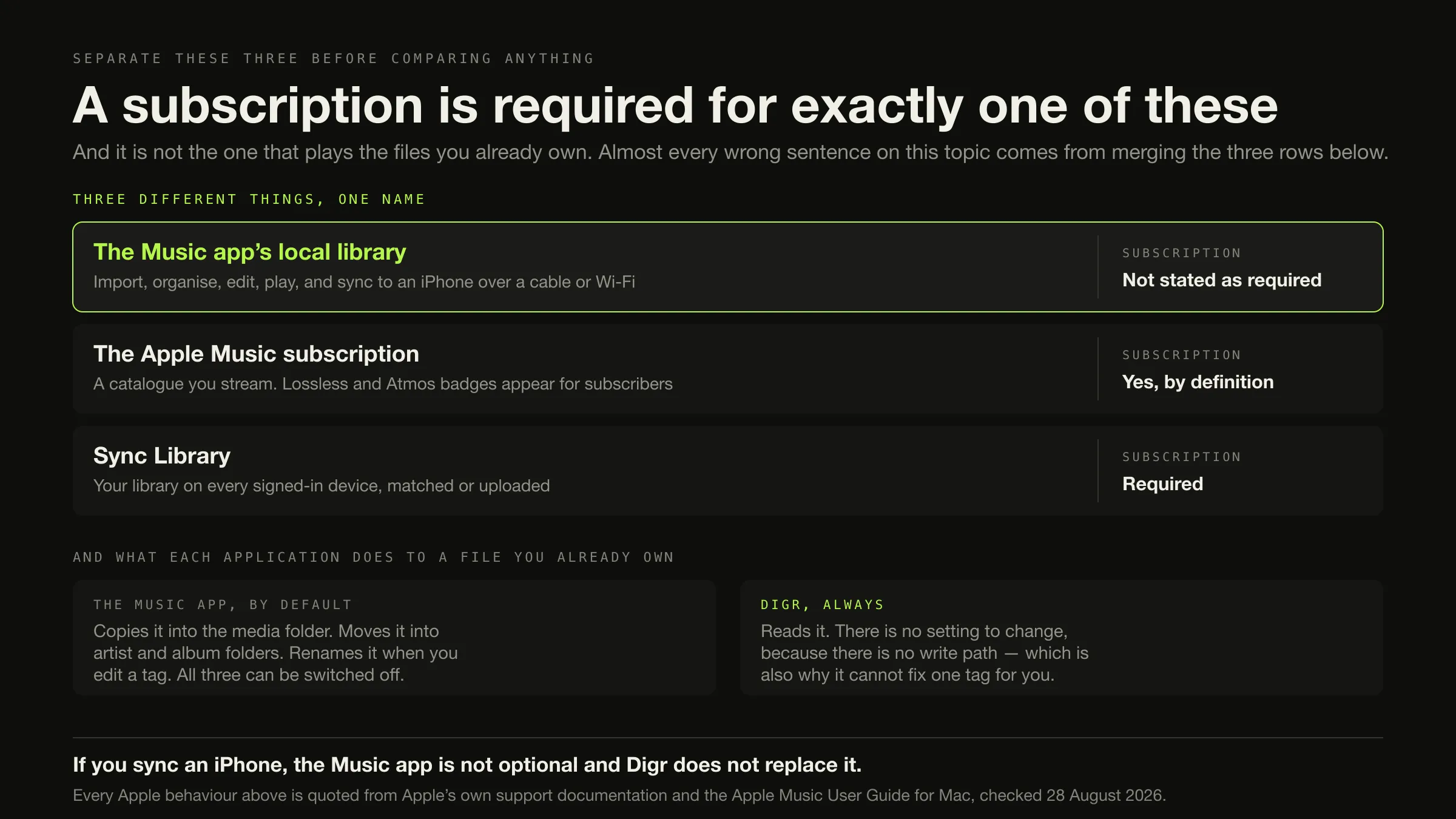
Three different things share the name Apple Music, and a subscription is required for exactly one of them. Separate them and this comparison becomes answerable.
- The Music app’s local library — import, edit, organise, play, sync to an iPhone. Apple does not state that a subscription is required for any of it.
- The Apple Music subscription — a catalogue you stream.
- Sync Library — your library on every signed-in device. Apple’s own words: “Sync Library requires a subscription to Apple Music.”
If you sync an iPhone, want AirPlay, or want your library on every device, the Music app is the answer and Digr does not replace it. If you want a second application that indexes the same folder and cannot write to it — and you cast to a Chromecast — Digr fits alongside it. Counted on shipping behaviour, the Music app takes twenty-two of thirty-six rows and Digr takes four.
Every Apple behaviour below was checked on 28 August 2026 against Apple’s own support documentation.
What the Music app does to a file you already own
This is the anxiety the query carries, and Apple answers it directly on its own support site. All three defaults are documented, and all three can be turned off.
It copies the file. Files settings: “Copy files to Media folder when adding to library — Copy an item to the Media folder when you drag the item to the Music window.” Turn it off and, in Apple’s words, “the item appears in Music, but the actual file isn’t copied or moved.” There is also a per-drag override: “You can temporarily reverse this setting by holding down the Option key while you drag files to the Music window.”

It files the copy under artist and album. Files settings again: “Keep Media folder organized — Automatically move imported music into folders for album and artist.”
It renames the file when you edit a tag. Apple’s own heading is “Change information without changing the files on your hard disk”, and the sentence under it is unambiguous:
“By default, changing information for an item in Music also changes the file’s name on your hard disk. You might not want filenames to change if, for example, the files are used by other apps on your computer.”
Apple’s remedy is the same switch: “Choose Music > Settings, click Files, then deselect ‘Keep Media folder organized.’”
None of that is a trap, and this article is not going to call it one. A librarian who reshelves your books is doing the job. The Music app is a manager as well as a player, and for somebody who wants the application to own the folder layout that is the correct default. It is documented, it is switchable, and Apple tells you why you might want to switch it.
Digr’s relationship with the same folder has no settings in it. Scanning opens your audio files to read tags and artwork and never writes to them: nothing is copied, renamed, moved or re-tagged, and removing Digr leaves the collection byte for byte as it was. That is not a preference somebody has to have set — there is no write path in the application.
Two applications, two answers to one question: who owns the shape of the folder.
The two menu commands, and the setting that hides one of them
Worth knowing exactly, because this is where a library gets duplicated by accident. From Apple’s own import page:
“Choose File > Add To Library to add the songs to your library, but not copy them to your Media folder. (This option is only available if you haven’t selected ‘Copy files to Media folder when adding to library’ in Files settings.)”
“Choose File > Import to import the songs into your library and copy them to your Media folder. (This option is only available if you selected ‘Copy files to Media folder when adding to library’ in Files settings.)”
So the two commands are mutually exclusive, and which one you see depends on one checkbox. If you have never touched that checkbox, you have been using File > Import, and there is a second copy of every file you added.
One honesty note about Apple’s own page. Its final paragraph reads: “When you import an item by dragging it to the Music window or choosing File > Add To Library or File > Import, a reference (or ‘pointer’) to the item—not the item itself—is placed in the Music folder.” That sits directly below a paragraph saying “By default, Music places a copy of each audio file in the Music folder (Home/Music/Music) and leaves the original file in the current location.” Those two sentences are hard to reconcile, and this article is not going to pick the one that suits its argument. The setting names and the menu commands are unambiguous, and they are what everything above rests on.
Consolidate copies. It does not move
A separate and more expensive surprise, in Apple’s own words:
“Choose File > Library > Organize Library, then select ‘Consolidate files.’ Files remain in their original locations, and copies are placed in the default folder.”
Consolidating a 500 GB library therefore needs another 500 GB, and afterwards you have two of everything. Finding the duplicates afterwards is a job with a method, and it is easier to know this before pressing the button than after.
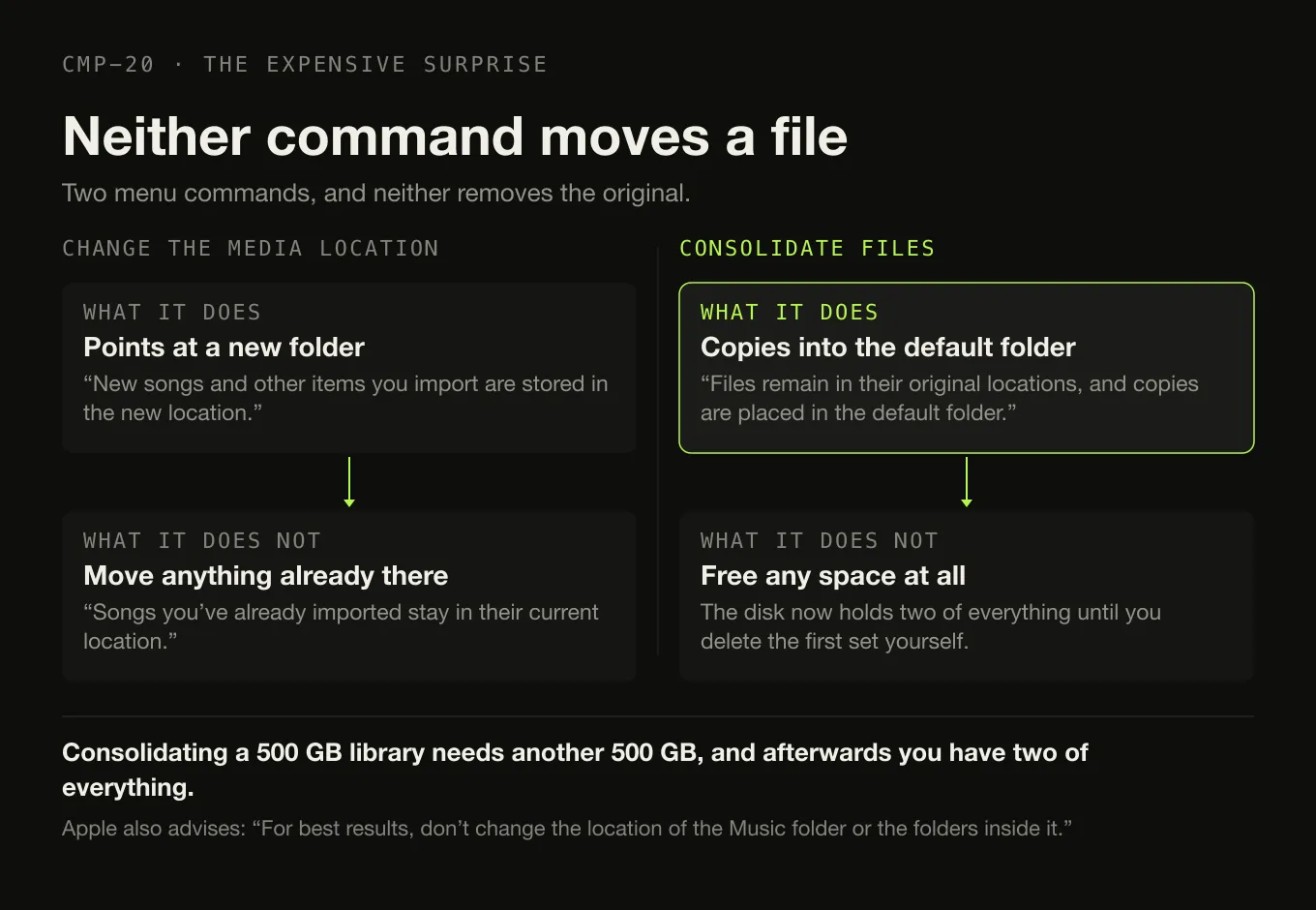
Apple also gives advice that constrains what a reader should do next, and it is worth quoting because it cuts against the instinct to reorganise: “Important: For best results, don’t change the location of the Music folder or the folders inside it.”
Digr has no consolidation feature and no need for one. It indexes folders where they already are, on as many disks as you like. A folder layout that survives every tool is worth building deliberately.
The comparison, on what ships today
Roadmap is excluded from every row. Not documented means the fact was not on any
Apple page read on the day, and no inference is drawn from its absence.
| Dimension | Digr, today | The Music app, today | Row |
|---|---|---|---|
| Price | Free | Bundled with macOS | Neither |
| Account for local playback | None, ever | Not stated as required | Neither |
| Telemetry | None | Not assessed | Unverified |
| Your audio files are written to | Never — no write path exists | By default: copied, moved into artist and album folders, renamed on a tag edit. All three switchable | Digr |
| Adding without copying | Not applicable — nothing is ever copied | Yes — File > Add To Library, with the copy setting off | Neither |
| Consolidating into one folder | No | Yes — and it copies rather than moves | Music app |
| Tag editing | None at all | Yes — the Info window, one item or a selection | Music app |
| Artwork | Reads embedded and folder art; content-addressed cache | Add artwork; CD information from the Gracenote media database | Music app |
| Duplicates | Inspect-only list of likely duplicates | Show Duplicate Items, and Show Exact Duplicate Items with Option held | Music app |
| Ratings | No | Yes | Music app |
| Play counts | No | Yes | Music app |
| Smart playlists | No | Yes | Music app |
| Local playlists | Yes, ordered, in SQLite | Yes | Neither |
| Playlist export | No | Yes — XML per playlist or for the whole library, plus a text export of every Info field | Music app |
| Playlist import | No | Yes, from Music XML | Music app |
| Crossfade | No | Yes | Music app |
| Gapless playback | No | Not documented on a page checked | Unverified |
| ReplayGain or Sound Check | No | Not documented on a page checked | Unverified |
| Equaliser | Ten bands, 32 Hz–16 kHz, six presets | Not documented on a page checked | Unverified |
| Format conversion | No | Yes — Create [format] Version, keeping the original | Music app |
| CD ripping and burning | No | Yes, both, with Gracenote lookup | Music app |
| FLAC | Indexed and played | Not named in any Apple document checked | Digr |
| ALAC | Yes | Yes | Neither |
| Google Cast | Yes — mDNS discovery, original file, Range support | Not documented | Digr |
| AirPlay | No | Yes | Music app |
| Several rooms at once | No | Yes — multiple speakers “in perfect sync” | Music app |
| iPhone and iPad sync | No, and not planned | Yes, over cable or Wi-Fi, with Autofill | Music app |
| Your library on every device | No | Yes, via Sync Library — subscription required | Music app |
| Streaming catalogue | No, and not planned | Yes, with a subscription | Music app |
| Lyrics | No | Yes — view and enter | Music app |
| Radio | No | Yes | Music app |
| External drive disconnected | Root marked offline, volume re-matched, paths rewritten, queue remapped | An exclamation point, then a Locate flow that offers to find the rest | Both have an answer |
| Multiple libraries | No | Yes | Music app |
| Library health views | Missing, duplicates, no artwork, unknown artist, unknown album — one screen | Duplicates and cloud status, in separate places | Digr |
| Runs on an Intel Mac | No build | Yes | Music app |
| Maturity | Alpha, 0.1.0-alpha.3 | Shipping; the guide’s current edition is macOS Tahoe 26 | Music app |
Music app 22, Digr 4, neither 5, unverified 4, both 1. Published with the rows visible — and it is the least useful count on this site, because one of Digr’s four wins is the only row most readers came for. Somebody worried about what is happening to their files does not need twenty-two other rows weighed against it.
Sync Library, and the limits Apple publishes
Sync Library is the cloud half, and it is the half with a subscription attached. Apple’s article, published 15 May 2026:
“Sync Library requires a subscription to Apple Music. You can also use Sync Library with an iTunes Match subscription.”
And, on the same page, a sentence worth reading twice: “Apple Music isn’t a backup service. Make sure to back up your music library before you make any changes.” Backing up a music collection is a separate job with a separate method, and Apple is telling you that this is not it.
Turn Sync Library on and your library is matched or uploaded. Apple documents what cannot be, on its Symbols page, and these are the only file-size limits quoted anywhere on this page because they are the only ones Apple states:
“The song can’t be uploaded to your music library. For example, the song file might be larger than 200 MB, or encoded at 96 kbps or less.”
“Your music library contains duplicate versions of this song, and only the other version was uploaded to your music library.”
“The song is being matched, but the process hasn’t been completed yet.”
No total library ceiling is claimed here, because no Apple page read on the day stated one. And no Apple Music or iTunes Match price appears anywhere in this article, for the same reason: Apple prices by region and tier, no pricing page was read, and a figure from memory is worse than no figure. What can be compared is that the Music app is bundled with macOS and Digr Free costs nothing.
Why a track goes grey, according to Apple
The query “songs greyed out in the music app” brings people here, and the causes are documented rather than folkloric. From Apple’s own article, in Apple’s own order:
- The song was purchased from the iTunes Store under a different Apple Account, or the computer is not authorised for that account.
- Content restrictions are set to Clean, in which case explicit songs appear grey.
- The song shows No Longer Available, meaning it “might have been removed from the Apple Music catalog”.
- The song is hidden.
Note what is not on that list: a lapsed subscription. What Apple does say separately is that cancelling an Apple Music or iTunes Match subscription removes your music library on all of your devices except the device where the library is stored. Both of those are true; neither implies the other, and this article does not join them up further than Apple did.
Separately, an exclamation point beside a track means something more mundane and more common: “The song can’t be played or synced across your devices until the original file is located.” Click it, and Apple’s flow offers to locate the file and then to use that location to find the rest.
That is the Music app’s answer to a moved or disconnected library, and it is a real one. Digr’s is different in shape: unplugging an external drive marks its root offline rather than deleting the tracks, and when the drive returns Digr matches the volume by identifier or name, rewrites the indexed paths and remaps anything queued. Moving a library to an external SSD is where this behaviour stops being theoretical.
FLAC, stated precisely
Three separate statements, and none of them is inferred from the others.
- Digr indexes and plays FLAC. It is in the indexed-format list and in the list of containers that play locally.
- No Apple document read on 28 August 2026 names FLAC in connection with the Music app. The formats Apple names in its own import and conversion documentation are MP3, AAC, Apple Lossless, AIFF and WAV.
- No Apple page stating that FLAC is unsupported was found either.
Apple Lossless is not FLAC. ALAC is Apple’s own codec, and Apple’s lossless documentation is about the Apple Music catalogue rather than about your files — the lossless and Dolby Atmos badges, on Apple’s own Symbols page, appear “if you’re signed in as a subscriber to Apple Music”. Support for one lossless codec says nothing whatsoever about support for another. The two behave differently on macOS in ways worth knowing before you rip anything.
One local library, two control models
The same folder, and what each application is entitled to do to it
The Music app By default, a copy is placed in Home/Music/Music and the original is left where it was. File > Add To Library skips the copy, and is only offered when the copy setting is off.
Digr A row is written to a SQLite index on your disk. The file is opened, read and closed. There is no import step because nothing is imported.
The Music app “Keep Media folder organized” moves imported music into folders for album and artist. Consolidate places copies in the default folder and leaves the originals. Both are features, and both can be switched off.
Digr You do. Digr has no opinion about your layout and no mechanism to act on one.
The Music app Apple: “By default, changing information for an item in Music also changes the file’s name on your hard disk.” Deselecting “Keep Media folder organized” stops it.
Digr There is nothing to edit. Digr will show you that a record has no album artist and cannot put one there.
The Music app Your library is matched or uploaded, and appears on every signed-in device. A file over 200 MB or at 96 kbps or below cannot be uploaded. Requires Apple Music or iTunes Match.
Digr Not applicable, and never will be. There is no account, no cloud library, and a cloud-first library is on the permanent not-planned list.
The Music app Not applicable — it is part of macOS, and whatever it copied, moved or renamed stays that way.
Digr Delete one application-support folder and the collection is byte for byte as it was.
The arrangement worth actually recommending
Not either/or, and this is the useful part of the page.
The Music app can be told not to copy files into its media folder. Digr cannot write to a file under any circumstances. So both applications can index the same folder and neither disturbs the other. The Music app keeps the iPhone, the AirPlay speakers, the iTunes Store purchases and the tag editor. Digr adds a read-only index over the same files, with Google Cast, on the machine where the files live.
The caveat is exact and belongs next to the recommendation: this holds only while “Copy files to Media folder when adding to library” and “Keep Media folder organized” are both off. With either on, the Music app will move or rename files underneath Digr’s index, and Digr’s answer to that is a rescan — the index is a derived cache, so a rescan rebuilds it correctly. Nothing is lost either way; it is just work you did not need to do.
Playing a local file on a Mac is a solved problem with more than one right answer, and running two players over one folder is one of them.
Exactly how far Digr reaches
Not a claim, a screenshot. This is Digr’s output list on an ordinary home network, and it is the whole of the product’s reach.
Read that against the Music app, which reaches an iPhone over a cable, an AirPlay speaker in another room, an Apple TV, a HomePod, and — with a subscription — every device the account is signed in on. AirPlay, Google Cast and DLNA are three different protocols rather than three brands of one, and the boxes on your shelf decide which of these two applications is useful in your house.
What travels, and in what order to do it
There is no migration here, because nothing is being replaced. What follows is the order that avoids losing anything.
First, export your playlists — while the Music app still has them. File > Library > Export Playlist gives XML for one playlist; File > Library > Export Library gives XML for all of them; and a text export carries “All information from each song’s Info window”, not just the visible columns. Apple is clear about what an export is: “the actual songs or music videos aren’t included—just the information about them or the playlist.” Digr documents no playlist import of any kind, so treat the export as a record you keep rather than a transfer you perform.
Second, check whether you already have two of everything. If “Copy files to Media folder” has ever been on, or Consolidate has ever been run, there are duplicates on disk.
Third, and only then, point Digr at the folder. It indexes in place. Your tags travel because they are in the files; your embedded and folder artwork travels for the same reason. Which of those two artwork locations you are relying on is worth checking first.
What does not travel: ratings and play counts, because Digr has neither field. Smart playlists, because Digr has no rule-based playlists. Anything the Music app holds in its own artwork store.
What you should not touch: Sync Library. Turning it off removes all downloaded music, per Apple, and it has nothing to do with trying a second player.
What stays with the Music app permanently: the iPhone, AirPlay, iTunes Store purchases, CD ripping, tag editing, and the library that appears on every device. Keep the application. It is part of macOS and Digr does not replace it.
What Digr has planned
Named once, undated, and counted in no row above.
Planned: AirPlay output, DLNA and UPnP output, OpenHome, and native ecosystem speaker groups; metadata and tag editing with MusicBrainz and Cover Art Archive lookup, all changes undoable; truly gapless local playback, optional crossfade, ReplayGain and non-destructive loudness normalisation; CD import with FLAC output; lyrics from your own files and .lrc files; a small web remote served on your own LAN, with Shortcuts and deep links; sessions and playlists that travel; automatic filesystem watching; Windows, then Linux.
Not planned at all, and this is the important half. iOS and iPadOS are on Digr’s permanent not-planned list — in the roadmap’s own words, “a phone app is a different product with a different architecture.” So is a cloud-first streaming library: “No accounts, no server-side library, no catalogue to rent. Not an omission — the point.” And so are Intel Macs.
Those three absences are the Music app’s clearest wins, and Digr is not competing for any of them. That is the difference between a gap and a decision. The published capability list carries the absences as well as the features.
How this comparison was made
- Nothing was installed, purchased or subscribed to. The Music app was not opened, no library was imported, no setting was toggled and no file was watched to see whether it moved. Digr was not run for this article — its rows come from its own shipping code and the modules this site is built from.
- No listening test and no measurement. There is no sound-quality claim anywhere, and Apple’s lossless documentation is treated as being about Apple’s catalogue rather than about your files, because that is what it says.
- Every Apple behaviour is quoted from Apple’s own support documentation, with the date: the Apple Music User Guide for Mac, whose current edition is macOS Tahoe 26; the Sync Library article, published 15 May 2026; the missing-or-greyed-out article; and the AirPlay article. Fifteen Apple pages were read and all answered normally.
- No forum supplied a fact. The anxieties this query carries — matched copies, substituted quality, tracks greying out — are all answered from Apple’s pages instead. This article reports no user sentiment.
- No Apple Music or iTunes Match price appears, because no Apple pricing page was read and Apple prices by region and tier.
- The three things called Apple Music are separated before anything is compared, and the subscription requirement is attached to exactly the one Apple attaches it to.
- A contradiction on Apple’s own import page is reported rather than resolved. Two adjacent sentences disagree about whether a copy or a pointer is placed in the Music folder; the article names the conflict and rests its claims on the setting labels and menu commands instead.
- Only shipping behaviour is scored. Roadmap sits in its own section and decides nothing — including AirPlay, tag editing and gapless playback, which are three rows a reader might hope it would.
- Absences are labelled as absences from the documentation. Gapless playback, Sound Check, an equaliser and Google Cast in the Music app are four rows where Apple’s pages said nothing and this article says nothing either.
The short version
- Separate the three things first. The local library, the subscription, and Sync Library. Apple attaches a subscription requirement to the third one only.
- A subscription is not documented as required to play files you own, and Apple documents Finder syncing to an iPhone as the route for people who do not want one.
- The Music app copies, files and renames your music by default. Apple documents all three and documents the switches that stop them.
- Consolidate copies rather than moves. Budget the disk space.
- Digr never writes to an audio file, under any setting, because there is no write path.
- FLAC: Digr does. Apple’s documentation does not name it, and does not say it is unsupported. ALAC is not FLAC.
- iPhone, AirPlay, several rooms in sync, tag editing, ratings, play counts, smart playlists, CD ripping, playlist export, lyrics, radio and an Intel build all go to the Music app. Twenty-two rows, and the phone alone settles it for most people.
- Digr wins four rows: the read-only guarantee, FLAC, Google Cast, and one screen of library-health counters.
- The best answer is usually both, with the Music app’s two copy-and-organise settings off.
- Upload limits, in Apple’s words: over 200 MB, or 96 kbps and below, cannot be uploaded to your music library.
If the underlying question is whether owning files is worth the trouble at all, that argument has its own page and does not pretend the answer is obvious. If you want the macOS field rather than these two, the shortlist states each product’s maintenance status and Apple-silicon nativeness. And if what you really need is a tag editor rather than a player, the dedicated managers are compared separately.
Sources
Every Apple fact above comes from Apple’s own support documentation, checked on 28 August 2026 unless a different date is given. No forum, roundup, review or third-party page was used for any product fact. No sound-quality claim appears, and no Apple Music or iTunes Match price is quoted.
- Apple — Use Sync Library with your Apple Music subscription — “Sync Library requires a subscription to Apple Music. You can also use Sync Library with an iTunes Match subscription.”; “Apple Music isn’t a backup service. Make sure to back up your music library before you make any changes.”; the manual-sync alternative for people without a subscription. Published 15 May 2026
- Apple — If songs are missing or grayed out in your music library in the Music app — the greyed-out causes: a different Apple Account, an unauthorised computer, restrictions set to Clean, “No Longer Available”, and a hidden song; the cloud status flow, and “The song can’t be played or synced across your devices until the original file is located.”
- Apple — Change Files settings in Music on Mac — Media Location; “Keep Media folder organized — Automatically move imported music into folders for album and artist.”; “Copy files to Media folder when adding to library — Copy an item to the Media folder when you drag the item to the Music window.”
- Apple — Change where your music files are stored on Mac
— the default
Home/Music/; “Important: For best results, don’t change the location of the Music folder or the folders inside it.”; “Choose File > Library > Organize Library, then select “Consolidate files.” Files remain in their original locations, and copies are placed in the default folder.”; “the item appears in Music, but the actual file isn’t copied or moved.”; the Option-key override; the Locate flow - Apple — Import music from a computer to Music on Mac — File > Add To Library against File > Import, with the condition attached to each; the copy-versus-pointer paragraphs that this article reports as contradictory
- Apple — Change song and CD information in Music on Mac — “By default, changing information for an item in Music also changes the file’s name on your hard disk.”; the fix, “deselect ‘Keep Media folder organized’”; multi-item editing; CD information “from the Gracenote media database”
- Apple — Convert music file formats in Music on Mac and Apple — Convert a song to a different file format — Create [format] Version; “Examples of compressed formats are MP3 and Apple Lossless Encoder. Examples of uncompressed formats are AIFF or WAV.” FLAC is not named
- Apple — Find duplicate items in Music on Mac — “Choose File > Library > Show Duplicate Items.”; and, with Option held, “Show Exact Duplicate Items”
- Apple — Save a copy of a playlist in Music on Mac — Export Playlist as XML, Export Library, Import Playlist, the text export of “All information from each song’s Info window”, and “the actual songs or music videos aren’t included—just the information about them or the playlist.”
- Apple — Symbols used in Music on Mac — “The song can’t be uploaded to your music library. For example, the song file might be larger than 200 MB, or encoded at 96 kbps or less.”; “Your music library contains duplicate versions of this song, and only the other version was uploaded”; “The song is being matched, but the process hasn’t been completed yet.”; “The song can’t be located; it may have been moved or deleted.”; the crossfade description; and the note that the lossless and Dolby Atmos icons appear “if you’re signed in as a subscriber to Apple Music”
- Apple — Play lossless audio in Music on Mac and Apple — About lossless audio in Apple Music — the Apple Lossless Audio Codec, and that lossless in Apple Music is a subscription catalogue feature
- Apple — Connect your device to your Mac to sync Music content — iPhone, iPad and iPod syncing over a cable, Autofill, and “Manually manage music, movies, and TV shows”
- Apple — Use AirPlay to stream audio — “Open the Apple Music app. Click AirPlay in the playback controls, then select a speaker or multiple speakers.”; “Play audio across multiple speakers throughout your home in perfect sync.”
- Apple Music User Guide for Mac — the guide’s contents and its current edition, macOS Tahoe 26
- Digr — features and current capabilities and Digr — system requirements — every Digr claim above, including that audio files are only ever read, that FLAC is indexed and plays, and the absence of tag editing, ratings, play counts, smart playlists, playlist import and export, crossfade, gapless playback, ReplayGain, CD support, lyrics, radio, AirPlay, device sync, a mobile application and an Intel Mac build. iOS and iPadOS are on the not-planned list
- Digr — pricing — Digr Free, and Digr Pro priced but not purchasable: no checkout on this site and no licence system in the application
Common questions
Do I need an Apple Music subscription to play my own local files?
Apple does not state that you do. The subscription requirement Apple publishes is for Sync Library: “Sync Library requires a subscription to Apple Music. You can also use Sync Library with an iTunes Match subscription.” Apple’s documentation for importing files from your computer and playing them describes no sign-in step at all, and it documents syncing music to an iPhone through the Finder as the alternative for people who do not want a subscription. Checked on 28 August 2026.
Does the Music app support FLAC?
No Apple document read on 28 August 2026 names FLAC in connection with the Music app, and no Apple page saying FLAC is unsupported was found either. The formats Apple names in its own import and conversion documentation are MP3, AAC, Apple Lossless, AIFF and WAV. Apple Lossless is not FLAC — ALAC is Apple’s own codec, and support for one says nothing about the other. Digr indexes and plays FLAC today.
Which one changes or copies my music files?
The Music app, by default, and Apple documents all of it. It copies an imported file into the media folder, moves imported music “into folders for album and artist”, and — in Apple’s own words — “By default, changing information for an item in Music also changes the file’s name on your hard disk.” All three behaviours can be switched off in Music settings. Digr never writes to an audio file under any setting, because there is no write path in the application at all.
Which one works with an iPhone?
The Music app, and only the Music app. It syncs music to an iPhone or iPad over a cable or Wi-Fi with no subscription documented as required, and with an Apple Music or iTunes Match subscription it makes your whole library appear on every signed-in device through Sync Library. Digr has no mobile application, no device sync and no remote, and iOS and iPadOS are on its permanent not-planned list rather than its roadmap. If you sync a phone, Digr does not replace the Music app.
Which one supports Chromecast?
Digr. It discovers Google Cast devices over multicast DNS and streams the original file to them with correct MIME types and Range support. Google Cast is not documented on any Apple page read on 28 August 2026; Apple’s documented outputs are AirPlay, Bluetooth and connected speakers. The Music app does AirPlay, including several speakers at once “in perfect sync”, and Digr has no AirPlay at all. This row is a straight swap and your speakers decide it.
Can I keep local files in the Music app without turning on Sync Library?
Yes. Sync Library is a separate feature you turn on in Music settings, and Apple’s instructions for importing and playing files from your computer do not involve it. Leaving it off means your library does not appear on other devices and nothing is matched or uploaded to Apple. It also means you avoid the upload limits Apple documents — a file over 200 MB, or encoded at 96 kbps or less, cannot be uploaded to your music library.
- Digr vs Apple Music
- Music app
- Sync Library
- iTunes Match
- local files
- FLAC
- AirPlay
- Google Cast
- media folder
- comparison